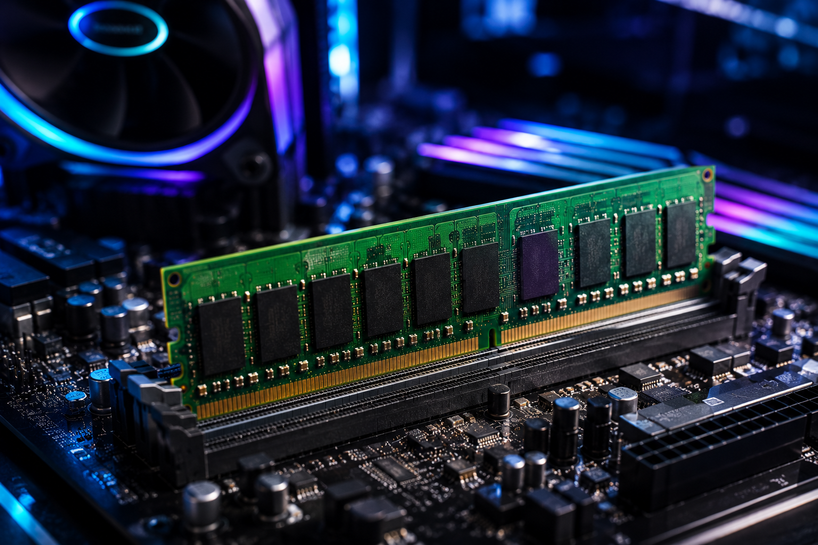
Every click, tab, and running program on your computer passes through one component before anything else: memory. RAM (random access memory) is the short-term workspace where your processor holds active data.
Your storage drive keeps files for the long haul, but computer memory is what your CPU actually works from second to second.
When you open a spreadsheet, the file moves from your drive into RAM, so the processor can reach it in nanoseconds instead of milliseconds.
Close the program, and that space frees up for the next task. When RAM runs out, your system starts borrowing space from the much slower storage drive, and that's the exact moment a fast machine starts to feel old.
Understanding RAM
Three specs decide how Computer RAM performs in the real world: capacity, speed, and latency. Get these three right, and the brand name on the sticker matters far less than most buyers think.
Memory Capacity
Measured in gigabytes (GB), capacity sets how much active data your system can hold at once. More capacity means more browser tabs, larger project files, and more virtual machines running side by side without the system swapping data to disk.
Capacity is the spec most people feel first. A machine short on RAM stutters long before a slow CPU does.
Memory Speed
Rated in megatransfers per second (MT/s), speed tells you how quickly data moves between the RAM modules and the processor.
A DDR5-5600 kit moves data at 5,600 MT/s. Higher speed helps most in memory-hungry work like video editing, large database queries, and running local AI models, where the CPU is constantly asking for memory for fresh data.
Latency
CAS latency (CL) counts the clock cycles between the processor requesting data and the memory module answering. Lower is better. The catch: latency numbers rise with each DDR generation while real-world delay stays flat or improves, because each clock cycle gets shorter as speeds climb.
A DDR5-6000 CL30 kit actually responds faster in nanoseconds than an old DDR3-1600 CL9 stick, even though 30 looks worse than 9 on paper.
Different Types of RAM & Memory Boards
Not all memory does the same job. A print server, a gaming PC, and a RAID card each depend on a different class of memory module, built for a different workload. Here's what separates them.
Cache Memory
Cache Memory sits directly on or beside the processor and runs many times faster than main RAM. It stores the instructions and data the CPU expects to need next, cutting the round-trip to system memory.
Power Efficiency: Because cache handles the most repetitive requests locally, the system spends less energy shuttling data across the memory bus. That's part of why modern chips keep growing their cache sizes, some now stacking over 100MB of L3 on a single processor.
Desktop Memory
Desktop Memory uses full-size DIMM modules, the long sticks that slot into a standard motherboard. It's the most common upgrade path for home and office PCs because it's affordable and takes minutes to install.
Processing Power: Pairing your CPU with matched desktop memory kits in a dual-channel configuration can lift memory bandwidth substantially compared to a single stick. Two 16GB modules beat one 32GB module in almost every workload for exactly this reason.
Flash Memory
Flash Memory is non-volatile, meaning it keeps data even when the power is off. It's the technology inside SSDs, USB drives, and memory cards. It isn't system RAM, but it lives in the same family and matters just as much to overall speed.
Use Cases: Boot drives, embedded systems, industrial controllers, cameras, and firmware storage on servers and networking gear. Anywhere data has to survive a power cut, flash does the job.
Laptop Memory
Laptop Memory comes in the SO-DIMM form factor, roughly half the length of a desktop stick. Some modern laptops solder memory directly to the board, so check whether your model has open slots before buying.
Power Efficiency: SO-DIMMs run at lower voltages to stretch battery life. DDR5 laptop memory operates at just 1.1V, and the low-power LPDDR5 variant drops even further, which is why thin laptops now run all day on a charge.
Memory Boards
Memory Boards are expansion cards or riser assemblies that add memory sockets beyond what the motherboard offers. You'll find them in older enterprise servers, industrial equipment, and specialty systems.
Modular Expansion: Instead of replacing a whole system when memory demand grows, a memory board lets you add sockets and scale capacity in stages. For legacy hardware still in production use, sourcing the right board keeps expensive equipment alive for years.
Printer Memory
Commercial printers use dedicated RAM to hold print jobs, fonts, and rendered pages before they hit paper. When a shared office printer chokes on a large PDF, memory is almost always the bottleneck.
Processing Speed: More Printer Memory means complex, graphics-heavy documents render in one pass instead of spooling in chunks. For print-heavy offices, a memory upgrade is far cheaper than a new machine and clears queue backlogs immediately.
RAID Controller Memory
RAID controllers use onboard cache memory to buffer reads and writes across disk arrays. This cache absorbs write bursts and serves hot data without touching the drives.
Data Integrity: Quality RAID Controller Memory pairs with a battery or flash backup unit, so cached writes survive a power failure instead of vanishing mid-transaction. For databases and financial systems, that protection is the difference between a clean recovery and corrupted records.
Rambus Memory (RDRAM)
Rambus Memory (RDRAM) was a high-bandwidth memory design from Rambus that Intel backed heavily around the Pentium 4 era in the early 2000s.
Historical Context: RDRAM offered impressive bandwidth for its time, but cost far more than competing DDR SDRAM, ran hotter, and required modules in matched pairs with continuity sticks in empty slots. DDR won the price war, and RDRAM faded from mainstream PCs by the mid-2000s. It still matters today for one reason: legacy industrial and lab equipment built on RDRAM platforms remains in service, and replacement modules keep those systems running.
Server Memory
Server Memory is built for machines that never get to crash. Most of it is ECC (error-correcting code) memory, which detects and fixes single-bit errors on the fly, in registered (RDIMM) or load-reduced (LRDIMM) formats that stabilize the signal across many populated slots.
High Density: A single DDR5 RDIMM now reaches 128GB, and high-end modules go to 256GB. A dual-socket server with 24 slots can hold multiple terabytes of RAM, enough to run entire databases in memory or host dozens of virtual machines on one box.
The Evolution of DDR Technology
DDR (double data rate) memory transfers data on both the rising and falling edges of each clock signal, doubling throughput at the same clock speed. Each generation since has raised speed and cut power draw. Here's how DDR3, DDR4, and DDR5 stack up.
DDR3
Launched in 2007, DDR3 ran from 800 to 2133 MT/s at 1.5V, with a 1.35V low-power version arriving later. It powered over a decade of PCs and servers. No new platform supports it, but millions of working systems still run on DDR3, which keeps demand for replacement modules steady in 2026.
DDR4
DDR4 arrived in 2014 with official speeds from 2133 to 3200 MT/s at 1.2V, and overclocked kits pushed well past 4000 MT/s. It doubled practical module density over DDR3 and cut power per gigabyte.
DDR4 remains everywhere: countless office PCs, laptops, and enterprise servers deployed between 2015 and 2022 run on it, and upgrading those systems with more DDR4 is still one of the cheapest performance wins available.
DDR5
DDR5 launched in late 2021, starting at 4800 MT/s, and has kept climbing. Mainstream kits in 2026 sit between 5600 and 6400 MT/s, with enthusiast modules past 8000. Voltage dropped to 1.1V, and each module splits into two independent 32-bit subchannels, so the processor handles more requests in parallel.
DDR5 also adds on-die ECC to protect data inside the chip itself (separate from full server-grade ECC) and moves power management onto the module. Every current Intel and AMD platform is DDR5-only, so any new build in 2026 lands here by default.
One warning worth repeating: DDR3, DDR4, and DDR5 are physically incompatible. The notch on each module sits in a different position, and a stick from one generation will not fit a slot built for another.
How Much RAM Is Needed?
The honest answer depends entirely on workload. Here's where the lines fall in 2026.
Standard Office/Home Use
16GB is the practical floor for a smooth experience with browsers, office apps, and video calls running together. 8GB still works for light, single-task use, but modern browsers alone can swallow most of it. Gaming PCs should target 32GB now that current titles regularly recommend it.
Professional Workstations
32GB to 64GB covers video editing, CAD, software development, and data analysis comfortably. Engineers running large simulations, 3D artists working with heavy scenes, and anyone training or running local AI models should look at 64GB to 128GB, ideally with ECC memory to guard against silent data corruption during long compute jobs.
Enterprise & Data Centers
Servers start around 128GB for general virtualization and scale into terabytes for in-memory databases like SAP HANA, large virtualization clusters, and AI inference hosts. The math here is different: memory per VM, memory per container, and headroom for failover all drive the number, and running lean costs more in downtime than the modules ever would.
Technical Selection Guide: Which RAM to Choose for Your Computer?
Buying RAM for PC upgrades goes wrong in predictable ways. Work through these three checks, and you'll avoid nearly all of them.
Compatibility Checklist
Confirm which DDR generation your motherboard accepts, its maximum supported speed, and its per-slot capacity limit. Check your CPU's memory controller spec too, since it can cap speeds below what the board advertises.
For servers, verify RDIMM vs UDIMM support, because they don't mix. Manufacturer memory configurators and your motherboard's QVL (qualified vendor list) settle any doubt in minutes.
Form Factor Identification
Desktops take full-size DIMMs (288-pin for DDR4 and DDR5). Laptops take SO-DIMMs, unless memory is soldered. Servers demand ECC RDIMMs or LRDIMMs matched to the platform. Buying the right spec in the wrong form factor is the single most common return reason in memory sales.
Capacity Planning
Buy for the workload you'll run in three years, not the one you run today. Fill slots in matched pairs to keep dual-channel or quad-channel bandwidth, and leave slots open where possible so the next upgrade is an addition rather than a replacement.
On PC RAM budgets, capacity beats speed: 32GB of DDR5-5600 will serve you better than 16GB of DDR5-7200 in almost every real task.
Memory is also just one piece of a bigger purchasing decision. If you're planning a wider refresh across servers, storage, and networking, our Complete Guide to IT Hardware for Businesses in 2026 (Servers, Storage, Networking & More) walks through how memory choices fit alongside compute, storage tiers, and network capacity, so every part of the stack gets sized against the same workload plan.
Future Trends in RAM and Memory Boards
Two forces are reshaping memory buying decisions right now.
AI Processing: Memory-Intensive Tasks
AI workloads are hungrier for memory than anything before them. Running a large language model locally can demand 32GB to 128GB, depending on model size, and data center AI clusters are adopting MRDIMMs (multiplexed rank DIMMs) that push bandwidth past standard DDR5, plus CXL memory expansion that attaches extra RAM pools over the PCIe bus. If AI is anywhere in your roadmap, size memory first.
Efficiency: Lower Power Consumption
Each DDR generation has cut voltage, from 1.5V in DDR3 down to 1.1V in DDR5, and the pressure continues.
In data centers, memory draws a meaningful share of total power, so denser modules at lower voltage translate directly into smaller electric bills and less cooling load. Efficiency is no longer a footnote on the spec sheet; for large deployments, it's a line item on the budget.
Conclusion
RAM decides how much your system can juggle, memory speed decides how fast it moves, and matching the right module type to the right machine decides whether the investment pays off.
In 2026, that means 16GB as the sensible minimum for everyday PCs, 32GB to 64GB for serious work, ECC server memory sized with real headroom for enterprise loads, and DDR5 as the default for anything new, while DDR3 and DDR4 upgrades keep existing fleets productive at low cost.
Frequently Asked Questions
A: 16GB is a good baseline for everyday computing in 2026. Gamers and multitaskers should target 32GB, creative and engineering professionals do best with 64GB or more, and servers start around 128GB, depending on workload.
A: Match memory to workload: 16GB for office and home use, 32GB for gaming and heavy multitasking, 32GB to 64GB for professional content creation and development, 64GB to 128GB for simulation and local AI work, and 128GB upward for virtualization and database servers.
A: No. Running out of capacity hurts performance far more than a slower speed rating does. Buy enough gigabytes first, then choose the fastest speed your platform officially supports within budget. Speed differences show up most in AI, editing, and database workloads; capacity shortfalls show up everywhere.
A: 64GB is more than any current game needs. Titles in 2026 run well on 32GB, so the extra capacity only pays off if you stream, edit gameplay footage, run mods with heavy asset loads, or keep production apps open while playing. Pure gamers should put that money into a better GPU.
A: For a personal computer, yes. 256GB belongs in workstations running massive simulations, scientific computing, or large local AI models, and in servers hosting virtualization or in-memory databases. On a standard desktop, most of it would sit idle permanently.
A: ECC memory detects and corrects single-bit errors automatically before they corrupt data. During multi-hour simulations, renders, or analysis runs, a single flipped bit can silently ruin results or crash the job. ECC removes that risk, which is why engineering, scientific, and financial workstations specify it as standard.
A: Server Blink supplies genuine, compatibility-tested memory modules from manufacturers like HPE, Dell, Lenovo, and Samsung across every category, including current DDR5, DDR4, and legacy formats that other suppliers no longer carry. Custom configuration support, bulk order capability, PO acceptance for enterprise and government buyers, and fast US shipping make it a single source for everything from one workstation kit to a full data center memory refresh.