Choosing the Perfect Motherboard decides which processor, memory, storage, graphics card, case, and ports your computer can use. A wrong choice can leave new parts unsupported or block later upgrades.
The computer motherboard links every main part and controls data and power flow. A poor match can cause slow storage, unstable memory, heat, boot failures, and limited expansion.
For 2026 builds, new AMD AM5 and Intel LGA1851 desktop platforms use DDR5. AM5 support will continue through 2029, while Intel’s Core Ultra 200S Plus chips work with current Intel 800-series boards. Motherboard and Why It Matters
What is a Motherboard in Computer Hardware?
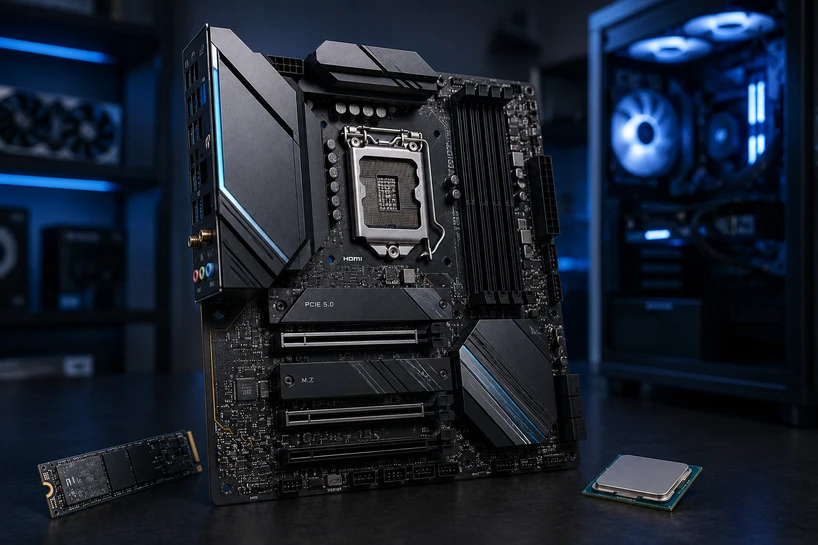
A Motherboard is the main printed circuit board inside a computer. It carries the CPU socket, RAM slots, storage links, expansion slots, firmware, power circuits, fan headers, and ports. People may also call it a mainboard, baseboard, or system motherboard.
How It Connects All PC Components
The CPU talks to memory, graphics, storage, and the chipset through lanes and buses. The chipset handles USB, SATA, audio, networking, and extra PCIe devices. BIOS or UEFI checks the hardware and starts the operating system.
Importance of System Performance and Stability
A motherboard rarely raises speed by itself, yet weak power circuits, poor cooling, slow storage links, or limited memory support can hold other PC components back. Board design also affects boot reliability, fan control, firmware updates, and fault finding.
Key Components of a Motherboard
CPU Socket
The socket must match the processor. AMD’s current desktop platform uses AM5, while Intel Core Ultra 200S desktop chips use LGA1851 and Intel 800-series boards.
LGA1851 chips do not fit LGA1700 boards. The chipset and BIOS must support the exact CPU. Some older AM5 boards need a BIOS update for newer Ryzen chips.
RAM slots hold desktop DIMMs. Check DDR generation, slot count, maximum capacity, supported speed, and module type. DDR4 cannot fit or work in a DDR5 slot.
Chipset
The chipset helps set USB, SATA, M.2, extra PCIe lanes, and tuning controls. Two boards with the same socket can have different limits, so compare the exact model sheet.
Expansion Slots
PCIe slots hold graphics cards, network cards, capture cards, sound cards, and storage adapters.
PCIe slots: A long x16-shaped slot may run at x8 or x4 speed. Extra M.2 drives may also reduce slot speed, so check the lane map in the manual.
Storage Interfaces
SATA: SATA connects hard drives, 2.5-inch SSDs, and some disc drives. It works well for low-cost storage and large drive sets.
M.2: M.2 describes a card shape and connector, not one storage type. A slot may support PCIe NVMe, SATA, or both, and only certain lengths, such as 2280.
NVMe: NVMe SSDs use PCIe and run much faster than SATA drives. Check each slot’s PCIe generation, heat sink, card length, and lane-sharing rules.
Types of Motherboards for Different Systems
Backplane Board
A Backplane Board provides slots and shared links for plug-in processors, network, storage, or control cards. Industrial, telecom, test, and server systems use backplanes when technicians need modular cards inside one chassis.
PICMG standards cover backplane systems that join a system card with peripheral cards. otherboards
Desktop Motherboards
Desktop motherboards use standard case sizes and replaceable parts. They suit gaming PCs, office desktops, workstations, and home-built systems, with a wide choice of chipsets and motherboard accessories.
Laptop Motherboards
Laptop motherboards use shapes made for a certain laptop series, and makers may solder key parts to save space. Replacement requires the correct model, board revision, connectors, firmware, battery, and cooling layout.
Motherboards Miscellaneous
A “motherboards miscellaneous” store group may include embedded, industrial, single-board, thin Mini-ITX, and old replacement boards. Check for soldered processors, custom power inputs, special ports, and unusual size limits.
System Motherboards
System motherboards can replace boards in named desktop models. Match the computer model, board part number, revision, CPU list, power plugs, front-panel connectors, and screw positions.
Server Motherboards
Server motherboards support long workloads, large memory pools, more storage, and remote control. Many add ECC memory, server CPU sockets, several network ports, many PCIe lanes, and a BMC for remote diagnosis and settings. Motherboard Sizes and Layouts
ATX
ATX measures about 12 by 9.6 inches, or 305 by 244 mm. It gives the most room for PCIe cards, RAM, M.2 heat sinks, fan headers, and rear ports.
Choose it for a full gaming tower, workstation, or system with several add-in cards.
Micro-ATX
Micro-ATX measures about 9.6 by 9.6 inches, or 244 by 244 mm. It suits many office and gaming builds but may offer fewer PCIe and M.2 slots.
It fits many ATX cases as well as smaller Micro-ATX towers.
Mini-ITX
Mini-ITX measures about 6.7 by 6.7 inches, or 170 by 170 mm. It commonly carries two RAM slots and one full-length PCIe slot. height, graphics card size, cable room, M.2 position, and fan space before buying a small case.
Core Features and Technical Specifications
Processor Compatibility
Check four points: socket, chipset, BIOS version, and CPU power needs. A board may fit the chip yet fail to boot until it receives a BIOS update.
Use the board maker’s CPU support page. High-power CPUs also need suitable power circuits, heat sinks, and CPU power connectors.
Memory Support
Motherboard specifications should list DDR type, slot count, maximum capacity, speed, channel layout, and ECC support.
The QVL shows tested memory kits, while the CPU list and BIOS page confirm processor support. 4 still suits many AM4 and Intel LGA1700 systems, mainly when a buyer already owns compatible memory.
DDR5: New AM5 and LGA1851 boards use DDR5. Stable speed depends on the CPU, BIOS, module count, and RAM kit, so the box rating may not run on every system.
Storage Compatibility and Speed
Count present and later drives, then check SATA ports, M.2 slots, card lengths, PCIe generation, heat sinks, and lane sharing. A faster SSD runs at the slot’s limit, and some M.2 slots disable SATA ports or reduce another PCIe link.
Expansion and Upgrade Support
List every card you may add, then check slot length, lane speed, spacing, and GPU clearance. Count fan, pump, USB, and front USB-C headers because missing headers require adapters.
Connectivity Options
USB ports: Count rear ports and case headers, then check their data speed. USB-C only names the plug shape and does not promise one speed or feature set.
LAN: A 2.5Gb port suits many homes and offices. Large file work, servers, and fast business networks may need 5Gb or 10Gb.
Built-in Wi-Fi: Check the Wi-Fi version, Bluetooth, drivers, antenna sockets, and included antenna. Newer standards need matching network gear.
Selecting the Right Motherboard for Your Needs
Define Your Purpose (Gaming, Work, Business)
Gaming systems: Spend first on the CPU and graphics card. Choose stable CPU power, a well-placed x16 slot, two or more M.2 slots, fast USB, suitable LAN, and matching memory support.
Work or office systems: Focus on stable drivers, display outputs, TPM 2.0, enough USB, reliable LAN, and easy service access. Extra lighting adds little.
Check support life, remote control, security, ECC needs, network ports, replacement stock, and firmware tools. For a wider plan covering servers, storage, networking, testing, and rollout, read our Complete Guide to IT Hardware for Businesses in 2026 (Servers, Storage, Networking & More).
Match with CPU and RAM Requirements
CPU compatibility with motherboard: Search the maker’s CPU list for the exact chip and required BIOS. BIOS Flashback helps when a board needs an update before it can start with a newer CPU.
RAM compatibility with motherboard: Match DDR type, module type, capacity, and speed. Use the QVL for fast or high-capacity kits, and place paired sticks in the slots named in the manual.
Consider Future Expansion
Plan for more RAM, another SSD, faster networking, or a larger graphics card. A spare M.2 slot and free RAM slots can prevent a costly rebuild, but unused card slots and tuning controls waste money.
Balance Features with Budget
Set the CPU and workload first, then buy the lowest-priced board that meets every real need. Compare exact models because a cheaper board may offer better ports, cooling, warranty, or BIOS tools.
Important Features That Add Value
Build quality and durability: Look for cooled CPU power parts, secure slots, clear socket protection, good fan control, and a board that does not flex easily.
Upgrade flexibility: Spare RAM slots, M.2 sockets, open PCIe slots, BIOS Flashback, and a current CPU platform make later changes easier.
Connectivity options: Rear USB count, front USB-C, LAN speed, Wi-Fi, Bluetooth, audio, and display outputs matter more than decorative covers.
Brand and reliability factors: Judge the exact model, local warranty, BIOS update record, manual quality, repair access, and parts supply. A brand name cannot fix a weak model.
Common Problems and Warning Signs
How to Maintain a Motherboard
Clean filters and heat sinks, keep air moving across power parts and SSDs, and unplug the system before changing parts. Use a good power supply and a suitable UPS where power drops or surges occur. Update BIOS only for needed CPU support, fixes, or security patches.
Signs Your Motherboard May Be Failing
Possible signs include no power, no POST, boot loops, stuck error lights, dead ports, corrosion, burnt areas, or an electrical smell. A bad power supply, loose RAM, damaged socket, failed graphics card, or case short can cause the same signs.
Common Issues Users Face
No display can come from loose power leads, RAM in the wrong slot, an unseated graphics card, or a monitor plugged into the wrong port. A new CPU may also need a newer BIOS.
Test with the CPU, cooler, one RAM stick, and graphics only when needed. Check debug lights and clear CMOS. ASUS lists power, CPU, memory, graphics, minimal-part testing, and CMOS reset as its main no-boot checks. epair vs Replace
Repair can make sense under warranty or for a low-cost BIOS, battery, port, or small board fault. Replace the board after burnt PCB damage, deep corrosion, several failed circuits, damaged socket contacts, or repeated faults.
Conclusion
The right motherboard starts with compatibility, not price or appearance. Match the CPU, chipset, BIOS, RAM, case, storage, power, ports, and expansion plan before comparing extras.
Leave sensible room for later upgrades. One spare M.2 slot, free RAM slots, enough USB ports, and a supported CPU platform can add years of useful service without wasting money.
Frequently Asked Questions
A: A desktop motherboard focuses on consumer CPUs, standard cases, gaming cards, and office devices. A server board may add ECC registered memory, server sockets, more PCIe lanes, several network ports, remote BMC control, and rack layouts.
A: Common signs include no POST, repeated restarts, dead ports, stuck error lights, burning smells, corrosion, or instability. Test the power supply, RAM, CPU, and graphics card first because their faults can look the same.
A: Choose the CPU first, then match its socket, chipset, BIOS, and power needs. Check RAM, case size, storage, PCIe slots, USB, networking, fan headers, warranty, and price.
A: Open the board maker’s CPU support page and search for the exact processor. Confirm the socket and minimum BIOS version rather than trusting only a store title.
A: A current general-use board should support at least one M.2 NVMe SSD and enough SATA ports for planned drives. Heavier systems may need several M.2 slots, heat sinks, RAID, or storage cards.
A: The main types include desktop, laptop, system-specific, server, workstation, embedded, and backplane-based boards. Each balances size, repair access, expansion, power, and remote control differently.
A: Consumer boards focus on home, gaming, and office parts. Enterprise server boards add ECC memory, remote control, faster networking, large storage sets, service access, and server processors.
A: Choose a board that supports the CPU, stable RAM, TPM 2.0, the needed display outputs, enough USB, and a reliable LAN. Business systems may also need remote management, ECC memory, longer support, or stocked replacement boards.
A: ATX gives the most room for cards, ports, and cooling. Micro-ATX cuts some expansion while keeping enough for many PCs, while Mini-ITX fits small cases with one main PCIe slot and fewer memory slots.