PCs handle personal work, study, entertainment, design, sales, and office tasks. Servers provide shared services, including file storage, user accounts, websites, databases, backups, and business applications. Both use similar hardware, yet their goals differ.
A personal computer serves one user. A server supports steady operation, controlled access, protected data, and many devices.
A sound PC & Servers plan starts with the job, not the product label. A fast processor cannot fix slow storage, weak cooling, poor networking, or unsuitable software.
Every pc server and parts purchase should support the workload, fit the chassis, match the power supply, and allow later upgrades.
What Are the Types of PC & Servers
Types of PC
Desktops
Desktops place the main PC components inside a tower or compact case. They offer strong performance for the price and let owners replace RAM, storage, graphics cards, fans, and power supplies.
A desktop computer or PC suits home offices, gaming rooms, schools, and fixed work areas. Buyers may also need a monitor and input devices.
Laptops
Laptops combine the screen, keyboard, battery, camera, storage, and processor in one portable body. They suit people who work in several places.
Check battery life, screen brightness, ports, keyboard comfort, and repair options. Thin models may lose speed during long editing, gaming, or data tasks because the cooling space stays limited.
Notebooks
Notebook and laptop now mean nearly the same thing, though sellers may use notebook for lighter models. These systems fit documents, calls, learning, and travel.
Many notebooks use soldered RAM or storage, so choose enough when buying. A model with 16 GB RAM and a 512 GB SSD suits most office users.
POS Systems
A point-of-sale system is a task-focused PC used at checkout counters, restaurants, clinics, and service desks. It may connect to a touchscreen, scanner, receipt printer, cash drawer, card terminal, and customer display.
Look for stable software support, enough ports, wired networking, and replacement parts. Plan offline sales handling for internet failures.
Workstations
Workstations serve architects, engineers, video editors, animators, and researchers. They may carry high-core-count processors, professional graphics cards, large memory capacity, fast storage, and error-checking memory.
They cost more because long workloads, tested drivers, cooling, and reliability matter more than appearance.
Types of Servers
Server
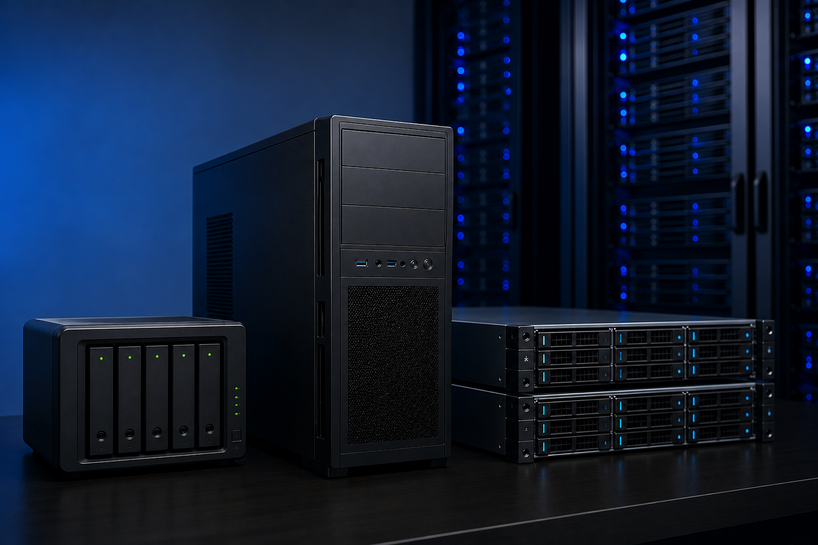
A physical Server can use a tower, rack, or blade design. Tower servers fit small offices. Rack servers save space and tidy cabling. Blade systems place several modules in one enclosure and suit larger data centres.
Virtualisation divides one physical machine into separate systems with their own operating systems and roles. Cloud servers run in a provider’s data centre. A NAS focuses on files and backups, while a full server supports wider roles.
Software
Server Software includes the operating system and installed services. Windows Server supports Active Directory, Windows file sharing, group policies, and Microsoft applications.
Linux suits web hosting, databases, containers, development tools, and custom systems. Choose based on application support, staff skills, licensing, updates, and management tools.
Core Key Components of PC & Servers
Key Components of PC
The motherboard connects the CPU, RAM, storage, graphics, ports, and expansion cards. The CPU runs instructions, while RAM holds working data.
An SSD stores the operating system, software, and files. NVMe SSDs respond faster than hard disks and older SATA SSDs, though hard disks suit large archives.
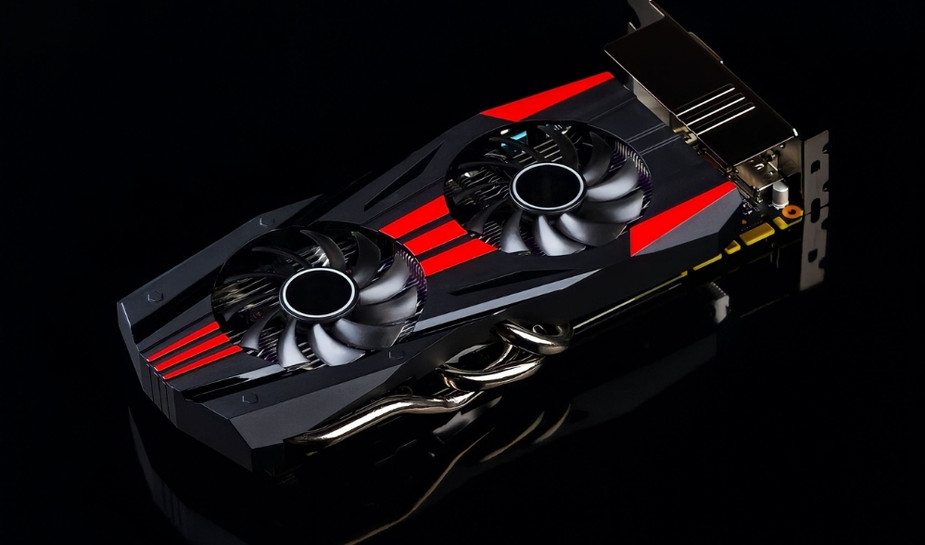
The graphics processor handles video, gaming, 3D work, and some AI tasks. Basic users can rely on built-in graphics. Gamers and creators may need one. The power supply must cover every part, while cooling controls heat.
Check the CPU socket, RAM type, case size, cooler height, card length, and power connectors before ordering.
Key Components of Servers
Server components perform the same jobs as PC parts, but many support uptime and fault control. Server motherboards may carry more memory slots, remote management, extra network ports, and more storage links.
ECC RAM can correct certain memory errors. Size memory for the operating system, users, databases, and virtual machines.
Plan storage around speed and recovery. Mirrored storage can keep a system running after one device fails, but RAID cannot replace backup. SSDs suit databases and active files. Large hard disks suit archives.
Storage controllers, dual power supplies, hot-swap bays, cooling, and remote management help technicians handle faults with less disruption.
For wider hardware planning, read our Complete Guide to IT Hardware for Businesses in 2026 (Servers, Storage, Networking & More). It explains how servers, storage, switches, routers, wireless access points, backup systems, power protection, and staff devices work together. This view prevents a fast server from sitting behind weak networking or backup.
Common Use Cases of PCs and Servers
Use Cases of PC & Servers
PCs run user tools. Servers store shared data, control access, host applications, and support many devices.
|
User group |
PC use |
Server use |
Sensible starting point |
|
Home users |
Browsing, study, documents, calls, media |
Shared files, media, family backup |
Laptop or desktop with 16 GB RAM and SSD; NAS only for regular sharing |
|
Gamers |
Games, streaming, chat, recording |
Private game hosting and saved worlds |
Balanced gaming desktop; hosted server for public groups |
|
Small businesses |
Email, accounts, POS, design, customer work |
Files, identity, backups, databases, business apps |
Business PCs plus NAS, tower server, or cloud services |
|
Enterprises |
Department software, analysis, engineering, and remote work |
Virtual machines, databases, web systems, identity, and large storage |
Managed workstations, rack servers, clusters, and cloud services |
How to Choose the Right PC & Server
For home users
Start with the hardest task. Office work, streaming, and calls run well on a current processor, 16 GB RAM, and a 512 GB SSD. Choose a laptop for travel and a desktop for repairs. Check Windows 11 support, ports, screen comfort, and warranty.
For gaming
Match the graphics card to the monitor resolution and refresh rate. A mid-range gaming PC may use a six-core or eight-core CPU, 16 GB to 32 GB RAM, a 1 TB NVMe SSD, and a good power supply. Avoid weak cooling or an underpowered CPU.
For business
List each application, user count, storage volume, access location, and downtime cost. Office PCs need current operating systems, hardware security, and business warranties. File servers need capacity and network speed. Database servers need fast storage and memory. Virtual machines need more CPU cores and RAM.
Budget vs performance
Include displays, licences, backup, networking, power protection, installation, and support. Buy enough speed for the next few years, not an oversized system. Spend first on RAM, SSD capacity, reliable power, cooling, backup, and warranty.
How to Set Up a PC & Servers
-
Set Up a PC
Choose PC parts
Pick the CPU and motherboard together, then confirm the RAM type. Choose storage from current files and growth. Add a graphics card only when needed. Select a power supply with the right connectors and headroom. Confirm every part fits.
Assemble the hardware
Work on a clean table, disconnect power, and guard against static discharge. Install the CPU, cooler, RAM, and main SSD before placing the motherboard in the case. Fit the power supply, graphics card, storage, and fans. Check all cables.
Install the operating system
Create official installation media. Start from the USB device, choose the correct storage, and finish the setup. Windows 11 requires supported hardware, Secure Boot, and TPM 2.0. Pick a current Linux release when software or preference calls for it.
Install drivers and software
Run system updates first. Install chipset, graphics, audio, network, printer, and device drivers from the maker. Add needed software, user accounts, encryption, backup, and recovery options. Test networking, ports, sleep, updates, and restore tools.
-
Set Up a Server
Choose server hardware
Define the role, users, data size, growth, uptime target, and backup plan. Choose a server CPU, ECC memory where supported, redundant storage, network ports, a UPS, and enough cooling. Record serial numbers, storage positions, network details, and warranty dates.
Install server OS
Windows Server 2025 suits Microsoft-centred offices. Current Linux server releases suit web, database, container, and file workloads. Confirm application support, create boot media, set firmware options, install the OS, apply updates, load drivers, and secure the administrator account.
Configure network
Assign a fixed or reserved IP address. Set the gateway, DNS, time source, hostname, and firewall rules. Use wired Ethernet and separate public services from private office systems. Test local access, remote access, speed, and recovery after failure.
Set up roles
Install only required roles, such as file services, web hosting, databases, directory services, virtual machines, or backup management. Create user groups, grant access by role, schedule backups, test recovery, set alerts, and document changes.
Future Trends in PCs and Servers (2026)
Cloud computing changes buying decisions. Many businesses combine local PCs and servers with cloud email, identity, storage, backup, or applications.
This mixed model keeps selected data nearby while placing other services off-site. Compare cost, internet dependence, data location, recovery time, and staff skills before moving a workload.
AI-powered servers need GPUs, fast memory, storage speed, networking, power, and cooling. Smaller firms may run private search, document, image, or support tools locally when data control matters.
PCs also carry neural processing units for selected AI tasks. Buy around supported software and measured need, not an AI badge.
Edge computing moves processing closer to cameras, sensors, shops, factories, clinics, and branches.
Local processing can cut delay, reduce network traffic, and keep services working during an internet outage. Edge systems still need monitoring, updates, backups, and access rules.
Conclusion
The right PC or server starts with a clear workload. Home users need comfort, memory, fast storage, and current software.
Gamers need a balanced CPU, GPU, cooling system, and power supply. Businesses need dependable PCs, protected data, clear access rules, tested backups, and supportable hardware.
Treat PC parts and server parts as one system. Processor speed means little when memory runs short, storage stalls, heat builds, or the network blocks performance.
Write down the role, choose compatible parts, install supported software, test recovery, and keep records. The setup will work better and remain easier to manage.
Frequently Asked Questions
A: Start with the workload and budget, then choose a compatible CPU and motherboard. Match the RAM, storage interface, case, cooler, graphics card, and power connectors. Check support lists before ordering.
A: You need a case, motherboard, CPU, cooler, RAM, storage, power supply, and graphics hardware. Add a monitor, keyboard, mouse, installer, screwdriver, network connection, and paid software licences.
A: Choose a six-core or eight-core CPU, 16 GB to 32 GB RAM, a 1 TB NVMe SSD, a mid-range graphics card, and a quality power supply. Add a suitable motherboard, ventilated case, and capable cooler.
A: A high-performance PC may use a high-core-count CPU, 32 GB to 64 GB RAM, fast NVMe storage, a strong graphics card, and capable cooling. Match it to the software, file size, and workload length.
A: List the role, users, storage, access needs, and downtime cost. Choose enough CPU, ECC memory, redundant storage, wired networking, cooling, and UPS support. Install a supported OS, set access groups and backups, test recovery, and document the system.
A: Use the operating system’s package manager or the maker’s signed installer. Check compatibility, back up the server, test away from live work, record settings, and keep a rollback path.
A: Yes. An older iMac can share folders through macOS File Sharing and SMB. Use wired Ethernet, set permissions, prevent sleep, and keep another backup. Avoid business storage after security updates end.
A: PC parts focus on price, user speed, graphics, quiet operation, and upgrades. Server parts focus on long-running time, error checking, remote management, extra network links, redundant power, and replacement. Some parts overlap, but server components cost more because fault handling shapes their design.