Storage devices decide how fast your files open, how safely your data stays stored, and how much room your computer or business system has for future work.
A slow PC storage device can make a good computer feel old. A weak business storage setup can put customer records, invoices, designs, videos, backups, and daily work at risk.
Data keeps growing because people now save more photos, videos, games, project files, reports, software, printer logs, server files, and cloud backups.
Businesses also deal with larger databases, AI files, security footage, virtual machines, and customer data. That’s why storage in 2026 is not only about space. It’s also about speed, security, backup, access, and long-term cost.
Intelligent storage has become a major 2026 trend. Modern storage systems can monitor drive health, flag possible failures, manage power, support faster workloads, and work with AI-heavy data. NVMe 2.3, released in August 2025, added features for AI, cloud, enterprise, and client storage, including power control and faster recovery paths.
For a full hardware plan, read our: Complete Guide to IT Hardware for Businesses in 2026 (Servers, Storage, Networking & More). Storage devices affect servers, networking, desktops, laptops, printers, backups, and business continuity, so readers planning an IT refresh need to see storage as part of the whole hardware stack.
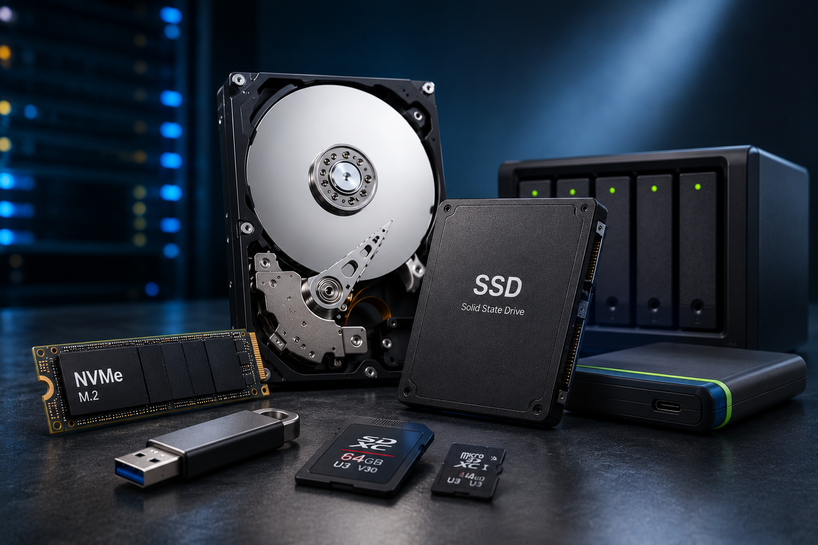
Common storage media in 2026 include desktop hard drives, laptop hard drives, server hard drives, printer hard drives, external storage devices, internal storage devices, SSDs, NAS systems, memory cards, and USB drives.
What Are Storage Devices?
Storage devices are hardware parts that save data so you can open it again later. Lenovo defines storage devices as hardware components used to store, retrieve, and manage data such as documents, photos, and software.
A storage device can sit inside a computer, connect through a cable, plug into a USB port, or serve many users over a network. Hard Disk Drives, Solid State Drives (SSD), USB drives, memory cards, and Network Attached Storage (NAS) all fall under computer storage devices.
Role in Computer Systems
Computer storage holds the operating system, apps, files, downloads, games, emails, settings, and work folders. When you turn on a laptop, the system reads files from the storage drive. When you save a photo or edit a spreadsheet, the computer writes new data back to that drive.
A faster drive gives the computer quicker access to files. Lenovo notes that SSDs can make a system boot faster and load apps more quickly than traditional hard drives because SSDs have no moving parts.
Importance of Enterprise IT Infrastructure
Business storage devices support daily work, security records, customer files, databases, virtual machines, email archives, and backups. A retail shop may need storage for sales data and cameras. A clinic may need safe storage for patient files. A design agency may need fast shared storage for large video and image work.
Enterprise IT teams care about capacity, speed, access control, drive health, redundancy, backup, and replacement planning. Without the right storage solutions, even strong servers and fast networks can slow down.
Types of Storage Devices
Hard Disk Drives (HDDs)
Hard Disk Drives store data on spinning magnetic platters. A mechanical arm reads and writes data on the disk surface. HDDs still make sense when you need large storage at a lower cost.
Features include high capacity, lower price per terabyte, wide device support, and good use for older systems. HDDs work well for backups, archives, media libraries, surveillance footage, and files that don’t need instant access.
Backblaze reported a 1.36% annualized failure rate across its hard drive fleet for 2025, based on more than 115 million drive days. That shows HDDs can still serve well in managed storage setups, but no drive should run without backups.
Solid State Drives (SSDs)
Solid State Drives (SSD) store data on flash memory. They don’t use spinning parts, so they read and write data much faster than HDDs. SSDs also handle bumps better in laptops because they have no moving disk inside.
For personal use, SSDs make laptops feel faster, reduce app loading time, and help games load sooner. For business use, SSDs suit operating systems, active project files, point-of-sale systems, workstations, and database workloads that need quick access.
Storage Media (USB & Memory Cards)
Storage media such as USB flash drives and memory cards help with portable and temporary storage. They work well for moving files between devices, saving camera footage, carrying documents, or installing software.
They should not be the only backup for business data. Small storage media can get lost, damaged, or stolen. Use them for transfer and short-term needs, not as the only copy of business files.
Network Attached Storage (NAS)
Network Attached Storage (NAS) gives shared file storage to many users over a network. IBM describes NAS as a centralized file server that lets several users store and share files over a TCP/IP network through Wi-Fi or Ethernet.
NAS works well for small offices, creative teams, home labs, and businesses that need shared folders. Many NAS systems support RAID storage, user permissions, snapshots, remote access, and capacity growth through extra drives.
Hard Drive Categories for Different Devices
Desktop Hard Drive
A Desktop Hard Drive often gives more capacity than a laptop drive. Many desktops use 3.5-inch HDDs for bulk storage or 2.5-inch SATA SSDs for speed.
Home users can store photos, videos, downloads, and games. Office users can store documents, reports, shared files, and local backups.
Laptop Hard Drive
A Laptop Hard Drive must fit inside a smaller space. Many older laptops use 2.5-inch SATA HDDs or SATA SSDs. Newer laptops may use M.2 SSDs, many of which run through SATA or NVMe.
Upgrading a laptop from an HDD to an SSD can make the biggest day-to-day speed difference for many users.
Printer Hard Drive
A Printer Hard Drive appears in many enterprise printers and multifunction devices. It can store print jobs, scan files, fonts, job logs, templates, and temporary data.
Companies should treat printer hard drives as data storage. Before selling, recycling, or returning a business printer, wipe or replace the drive if it handled sensitive files.
Server Hard Drive
A Server Hard Drive runs inside servers that may work all day and night. Server hard drives and enterprise SSDs are built for heavier workloads, higher duty cycles, and storage arrays.
Data centers use server hard drives for databases, backups, cloud platforms, file systems, and virtual machines. The drive type must match the server workload, cooling setup, RAID plan, and backup policy.
SSD vs HDD vs NVMe
Speed
HDDs are the slowest of the three because moving parts must find the data on spinning platters. SATA SSDs are much faster because they use flash memory. NVMe SSDs are faster again because they connect through PCIe and use a protocol built for flash storage.
NVM Express says NVMe defines how host software communicates with non-volatile memory across PCIe, RDMA, TCP, and other transports, and it is used for SSDs in M.2, U.2, AIC, and EDSFF form factors.
Cost
HDDs still win on low-cost bulk storage. SATA SSDs cost more than HDDs but give much better speed. NVMe SSDs can cost more than SATA SSDs, yet prices keep moving closer for consumer and business systems.
For many users, the smartest mix is one SSD or NVMe drive for the system and active files, plus a larger HDD or NAS for backups and archives.
Performance & Reliability
SSDs and NVMe drives give faster access because they have no spinning parts. HDDs still work well for large, less active data. Reliability depends on workload, heat, power quality, drive age, firmware, and backup habits.
No storage drive should be treated as permanent. Every storage drive can fail.
Best Use Cases
Use HDDs for backup, archive, video storage, and large file libraries. Use SATA SSDs for laptops, desktops, boot drives, and office PCs. Use NVMe SSDs for high-speed PCs, gaming, editing, databases, virtual machines, AI workloads, and demanding business software.
Enterprise and Data Center Storage Solutions
NAS & Storage Arrays
NAS gives shared file access, while storage arrays combine many drives into one managed storage system. A small business may use a NAS with four to eight bays. An enterprise may use storage arrays with SSD tiers, HDD tiers, caching, snapshots, and replication.
The right storage solution depends on the workload. File sharing, databases, virtual machines, backups, and AI training data do not all need the same setup.
RAID & Data Redundancy
RAID storage uses more than one drive to create speed, redundancy, or both. IBM explains that data redundancy means multiple copies of the same data stored across different locations, formats, or systems.
RAID 1 mirrors data across drives. RAID 5 and RAID 6 spread data and parity across several drives. RAID 10 combines mirroring and striping. RAID can protect against some drive failures, but RAID is not a backup.
Data Centers & Virtualization
Data centers need fast and steady storage for virtual machines, containers, databases, websites, business apps, and customer platforms. Virtualization places many systems on shared hardware, so storage speed affects many users at once.
NVMe has become a strong fit for virtualization because it can handle many input and output requests with low delay.
Backup & Disaster Recovery
Backups protect the business when drives fail, files get deleted, ransomware hits, or a site loses power. Backblaze describes the 3-2-1 backup rule as three copies of data, on two different media, with one copy off-site.
A disaster recovery plan should name what gets backed up, how often backups run, where copies live, who checks them, and how fast the business must restore service.
Storage Devices Use Cases
Home Users
Home users need storage for photos, school files, videos, tax papers, games, and family records. A good home setup may include a laptop SSD, an External Hard Drive, and a cloud or NAS backup.
Gamers & Creators
Gamers need fast loading and enough room for large game libraries. Creators need fast storage drives for video editing, photos, design files, audio sessions, and project archives.
An NVMe SSD works well for active projects. A large HDD or NAS works well for finished work.
Small Businesses
Small businesses need safe storage for invoices, customer files, product photos, staff records, accounting data, emails, and backups. A mix of SSD workstations, NAS storage, and off-site backup often works well.
Enterprises and Data Centers
Enterprises and data centers need storage that can support many users, large workloads, permissions, backups, audits, and replacement plans. Enterprise storage choices must include RAID planning, monitoring, spare drives, and tested recovery steps.
Maintenance & Best Practices
Backup Strategy (3-2-1 Rule)
Keep three copies of data, store them on two media types, and keep one copy off-site. This rule protects against drive failure, theft, fire, ransomware, and accidental deletion.
Test backups. A backup that won’t restore is only a false sense of safety.
Firmware Updates
Firmware controls how a storage device behaves. Updates can fix bugs, improve drive health reporting, and support better compatibility.
Businesses should test firmware updates before using them on many systems. Never update firmware without a current backup.
Temperature & Environment
Heat shortens storage life. Keep desktops, servers, NAS devices, and external drives away from dust, blocked vents, direct sun, and damp rooms.
Servers need planned airflow. External drives should not sit on soft fabric where heat can build up.
HDD vs SSD Maintenance
HDDs need care against shock, vibration, and heat. They may benefit from defragmentation on older Windows systems. SSDs should not be defragmented because they use flash memory.
SSDs need TRIM support, free space, firmware updates, and power protection. HDDs need health checks, surface scans, and replacement before failure signs grow worse.
How to Choose the Right Storage Device
Based on Device (Desktop / Laptop / Server)
For desktops, choose an SSD or NVMe drive for the system and a larger HDD for storage if you need more room. For laptops, choose an SSD or NVMe drive that fits the slot and supports the laptop’s standard. For servers, choose enterprise-rated HDDs or SSDs that match the server, RAID card, workload, and drive bay type.
Capacity Planning
Start with the current data size, then add growth. A home user may need 1TB to 4TB. A creator may need 4TB to 20TB or more. A business should plan storage around user count, file type, backup copies, software, and retention rules.
Speed vs Budget
Buy speed where it changes the work. Put the operating system, active files, apps, databases, and editing files on SSD or NVMe. Put archives, cold backups, and older media on HDD or NAS.
Compatibility
Check the connector, form factor, interface, height, power needs, operating system, and motherboard support. A drive that looks right may still fail to work if the system does not support its interface.
Storage Upgrade & Replacement Guide
When to Upgrade
Upgrade when storage is nearly full, the system feels slow, apps take too long to open, file transfers drag, or drive health tools show warnings. Businesses should also upgrade before new software, new users, or larger data workloads arrive.
SSD Upgrade Benefits
An SSD upgrade can make an older laptop or desktop feel much faster. Boot time, app loading, file search, and multitasking can all improve.
For business PCs, SSD upgrades can save staff time every day.
HDD Replacement Cases
Replace an HDD if it clicks, disappears from the system, runs very hot, shows bad sectors, slows down sharply, or fails health checks. Replace drives before failure when they hold business data.
New vs Refurbished Storage Devices
Benefits of New
New storage devices give full life expectancy, current warranty, clean history, and lower concern about hidden wear. New drives make sense for primary business data, active servers, customer records, and systems that cannot afford downtime.
Cost Comparison
Refurbished storage devices cost less than new ones. The savings can help businesses buy more capacity for testing, non-critical archives, labs, spares, or temporary storage.
The real cost includes warranty length, seller quality, prior usage, testing, and replacement risk.
Risk vs Reward
Refurbished drives can be smart when the seller tests them, gives health reports, wipes data fully, and offers a fair warranty. The risk rises when the drive has unknown hours, weak packaging, no return policy, or no proof of testing.
NIST’s media sanitization guidance warns that organizations must make data recovery infeasible before media leaves their control, which matters when buying, selling, or reusing storage media.
Cost Advantage of Refurbished
Refurbished storage devices for enterprise use can reduce hardware spend when a business needs spare server hard drives, test lab drives, backup rotation drives, or replacement parts for older systems.
The safest plan is to use refurbished drives in mirrored or backed-up setups, not as the only copy of critical data.
Business Use Cases
Refurbished drives can work for IT labs, staging systems, cold archives, non-critical NAS storage, spare drive shelves, and legacy server repairs. New drives fit better for production databases, main file servers, finance systems, and client-facing platforms.
Future Trends in Storage Devices
NVMe Growth
NVMe will keep moving into desktops, laptops, workstations, servers, and data centers. The NVMe 2.3 specification set includes transport updates for PCIe, RDMA, and TCP, which supports both local and networked high-speed storage.
AI & Big Data Storage
AI workloads need fast reads, fast writes, and huge capacity. Training data, model files, logs, analytics, and media data all push storage harder than normal office files.
Businesses using AI need to plan for capacity, speed, backup, and access control together.
Hybrid Cloud + On-Prem
Many businesses now keep some storage on-site and some in the cloud. On-prem storage gives local speed and control. Cloud storage gives off-site backup, remote access, and flexible capacity.
The best setup often uses both, with clear rules for active files, archives, backups, and sensitive data.
Conclusion
Storage equals performance plus security. The right storage device helps a computer run faster, makes files easier to access, and protects data from loss when paired with reliable backups.
A good long-term choice comes from matching the drive to the job. Use SSDs or NVMe drives for speed, HDDs for large, low-cost storage, NAS for shared access, RAID for redundancy, and a backup for real protection.
Frequently Asked Questions
A: The best business storage device depends on the workload, but most offices benefit from SSDs in computers and NAS storage for shared files. Larger companies may need server hard drives, enterprise SSDs, RAID storage, and off-site backups.
A: Upgrade your storage device when space runs low, the system slows down, file transfers take too long, or drive health tools show warnings. Businesses should upgrade before storage limits start affecting staff work or customer service.
A: Refurbished storage devices can be reliable when they come from a good seller with testing, health reports, secure wiping, and warranty support. Use them for non-critical systems, spares, test labs, and backed-up storage rather than as the only copy of key business data.
A: RAID combines multiple drives to improve speed, redundancy, or both. It matters because it can help a system stay available when one drive fails, but it cannot replace a backup.
A: Yes, storage devices can strongly affect system performance. Moving from an HDD to an SSD or NVMe drive can make booting, app loading, searching, and file work much faster.
A: Choose internal storage for your operating system, apps, games, and active work files. Choose external storage devices for backups, file transfers, travel, and extra storage that does not need to stay inside the computer.
A: SATA SSDs use the older SATA interface, while NVMe SSDs use PCIe and a storage protocol made for flash memory. NVMe drives can move data much faster than SATA SSDs when the computer supports them.
A: SSDs and HDDs can last for years, but their life depends on heat, workload, power quality, age, and build quality. Always keep backups because both drive types can fail without enough warning.
A: NVMe storage is a type of high-speed SSD storage that uses the NVMe protocol over connections such as PCIe. It works well for gaming PCs, business workstations, servers, databases, editing systems, and workloads that need fast access to data.