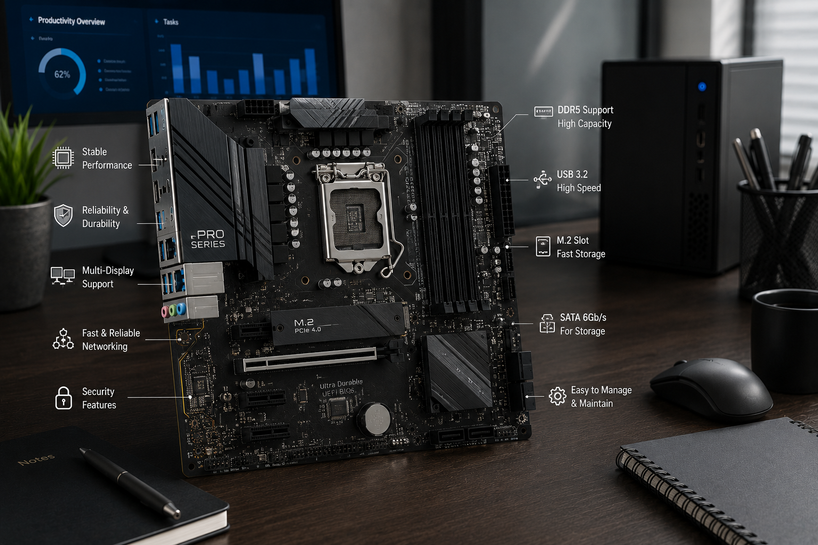
A fast processor cannot fix a poorly chosen motherboard. Missing memory slots, storage links, ports, or security controls can shorten the computer’s useful life.
For office and productivity PCs, the desktop motherboard affects stability, repair time, employee output, and upgrade costs. The right board can keep a PC useful through several software cycles.
This guide will help businesses, IT teams, and professionals choose a PC desktop motherboard for work in 2026. Focus on the job, case, and planned service life.
CPU Socket and Platform Compatibility for Long-Term Use
Latest CPU Socket Standards in 2026
The socket decides which processor fits the computer motherboard. It also shapes chipset choices, memory type, and upgrade options.
Current Intel office builds can use LGA1851 boards with Core Ultra desktop processors and Intel 800-series chipsets. Older LGA1700 processors do not fit. Check the exact processor name before ordering.
AMD’s AM5 platform supports several Ryzen desktop generations and uses DDR5. AMD plans to support AM5 through 2029, giving buyers a longer processor upgrade window.
Chipset Selection for Office Workloads
What chipset is best for desktop motherboard performance? A middle-tier chipset suits most office PCs. High-end chipsets make sense for several PCIe cards, many fast SSDs, or demanding workstation tasks.
A basic chipset can handle email, web apps, accounting, and documents. Confirm its USB ports, M.2 slots, display outputs, and expansion lanes before buying.
Future Upgrade Potential
Leave room for later needs. Four RAM slots, two M.2 slots, and one open PCIe slot can prevent an early replacement.
Memory Features for Office and Productivity Systems
DDR5 as Standard for Productivity PCs
Most new office platforms use DDR5. DDR4 still suits low-cost repairs built around older parts, but it narrows later platform choices.
How do you know if a motherboard supports DDR4 or DDR5? Check the specification or exact model. A board supports one type only, and different notch positions prevent a wrong fit.
RAM Slot Availability and Upgrade Options
Two-slot boards suit compact PCs, but four slots allow easier upgrades. A 16GB setup covers basic work. A 32GB setup better handles large spreadsheets, many tabs, design tools, and video calls.
Check maximum memory capacity and supported module sizes. Slot count alone does not confirm capacity.
ECC Memory for Business-Critical Systems
ECC memory can correct certain memory errors. It suits long calculations, financial work, engineering tools, local services, and round-the-clock jobs.
ECC support depends on the processor, chipset, BIOS, and memory modules. Some desktop computer motherboard models allow it only with selected processors. Verify the full support list.
Storage Performance with NVMe and PCIe Support
Multiple M.2 NVMe Slots for Fast Access
Fast storage improves startup, searches, project loading, and transfers. Two M.2 slots let one SSD hold Windows and the second hold work files or a later upgrade.
How do you know a motherboard supports an NVMe SSD? Find an M.2 slot that lists PCIe or NVMe support. Check the manual for SATA-only slots and shared capacity.
SATA Support for Legacy Storage Devices
SATA ports connect hard disks, older SSDs, optical drives, and backup storage. Four ports suit many offices, while NVMe-only builds may need fewer.
Reliable Connectivity and Networking Features
USB-C and USB4 for Modern Peripherals
USB-C connects docks, phones, storage, and some displays. USB4 can carry fast data and video through one compatible cable. Check speed, video, and charging support in the specification.
A front USB-C header matters when the case has a front Type-C port.
Wi-Fi 6E and Wi-Fi 7 for Flexible Office Setups
Wired Ethernet gives steady service, while built-in wireless helps in meeting rooms, temporary desks, and home offices. Wi-Fi 6E uses 6GHz with compatible equipment. Wi-Fi 7 suits newer, busier networks.
Check router support, security settings, and Ethernet speed. A 2.5Gb Ethernet port leaves more room for local transfers than standard gigabit networking.
Bluetooth for Office Devices
Built-in Bluetooth connects wireless headsets for calls, keyboards, mice, speakers, phones, and presentation controls. It also keeps a USB port free.
Display and Expansion Flexibility
HDMI and DisplayPort for Multi-Monitor Setups
Multiple screens help finance, design, support, coding, and research staff. Check the outputs and the processor’s display limit.
Motherboard display ports work only when the processor includes integrated graphics. Cables, docks, monitor resolution, and refresh rate also affect the setup.
Integrated Graphics Support for Office PCs
Integrated graphics can cut cost, heat, and repair needs. It suits office software, web work, calls, media, and many business apps.
Some processors lack integrated graphics. Check before relying on the board’s HDMI or DisplayPort sockets.
Expansion Slot Support for Additional Hardware
PCIe slots accept graphics, capture, network, sound, and storage cards. An office board needs fewer slots than a desktop gaming motherboard, but one spare slot helps later.
Large cards or coolers can block smaller slots. Review the layout, not just the count.
Security and Manageability for Business PCs
TPM 2.0 for Windows 11 Compliance
Windows 11 requires TPM 2.0. Boards may provide it through processor firmware or a separate module. Confirm BIOS access and a clear process for encryption recovery keys.
Secure Boot and BIOS Protection Features
Secure Boot helps stop untrusted startup software. Business boards may also offer BIOS passwords, update controls, rollback protection, intrusion headers, and recovery tools.
For larger deployments, check remote management, vendor update policies, device tracking needs, and expected BIOS support.
Standardized motherboard models also simplify spare-part stocking, technician training, BIOS updates, and fault checks across a larger shared office computer fleet.
Ensure Long-Term Reliability with Enterprise-Grade Build Quality
A stable voltage regulator module feeds the processor during long workloads. Office buyers do not need an extreme gaming design, but power stages need proper cooling.
Look for solid heatsinks, useful fan headers, quality capacitors, and a layout that separates hot parts. Good airflow protects the board during long workdays.
Signs of a bad motherboard before buying include bent pins, swollen capacitors, corrosion, cracked slots, repair marks, or no boot test. For used boards, request socket photos and proof that memory, network, USB, and storage work.
Evaluate Form Factor Based on Workspace and Deployment Needs
ATX offers more slots but needs a larger case. Micro-ATX fits many offices and still allows memory, storage, and card upgrades. Mini-ITX saves space but limits slots and repair access.
Match size to the job. Reception PCs may stay compact, while design workstations may need ATX space for graphics and extra storage.
Balancing Budget and Long-Term Cost Efficiency
Entry-level boards suit fixed tasks. Premium boards earn their cost only when extra ports, faster networking, storage lanes, management tools, or stronger power parts support real work.
Desktop motherboard buying mistakes to avoid include ignoring the socket, buying the wrong memory type, missing shared storage lanes, and paying for unused gaming features.
To check a desktop motherboard model, read the printed name, open the BIOS page, or use Windows System Information.
For broader help with sockets, chipsets, sizes, and build planning, read Choosing the Perfect Motherboard: A Complete 2026 Guide for PC Builders and Buyers. It will help answer which desktop motherboard I should buy for my PC before you compare models.
Conclusion
Choose a board that matches the processor, supports enough DDR5 memory, includes two NVMe slots, offers needed display and network ports, and provides TPM 2.0 with Secure Boot.
A reliable office motherboard should reduce repair trouble and support planned upgrades. Buy for the workload and service plan, not decorative gaming features or the highest chipset name.
Frequently Asked Questions
A: Check the board specification. It supports only one generation, and the slot design blocks the wrong module.
A: You may need a new processor, memory, cooler bracket, or case. Check the socket, RAM type, board size, power connectors, storage links, and operating system license.
A: Business boards may offer longer firmware support, remote management, security controls, and stable part supply. Consumer boards commonly focus on gaming and tuning. Server boards add server processors, larger ECC capacity, and remote administration.
A: Yes, when the PC lacks a graphics card. The processor must also include integrated graphics for the board’s display ports to work.
A: ECC lets compatible systems correct certain memory errors. The processor, chipset, BIOS, and memory must all support it.
A: It feeds the processor and affects heat, stability, and sustained speed. Better cooling helps during long workloads.
A: SATA ports connect hard disks, older SSDs, optical drives, and backups, even when the main SSD uses NVMe.
A: Start with the processor, software needs, upgrade plan, and budget. Then compare the matching socket, chipset, ports, storage, and support.