Think of RAM as your computer's desk. The bigger the desk, the more papers, files, and open projects you can spread out and work on at once without stopping to shuffle things back into a drawer. That desk is where your machine keeps whatever it's using right now, and it decides how smoothly everything runs.
In 2026, that desk matters more than it did even a year ago. Apps are heavier. AI features are baked into browsers, office suites, and design tools.
And memory prices have climbed hard because factories keep shifting production toward AI server chips, which has squeezed the supply of regular desktop memory.
So the wrong choice costs you twice: once at the till, and again in daily lag when your system runs out of room.
Computer Memory: What RAM Actually Does
What Is RAM (Random Access Memory)?
RAM is your computer's short-term working memory. It holds the data your machine is actively using at any given second, the web pages you have open, the document you're typing, the game that's running, so the processor can grab it instantly instead of digging it out of long-term storage.
Here's the part people mix up all the time. RAM is not the same as your SSD or hard drive. Storage is where your files live permanently: your photos, your installed programs, your saved work.
RAM is just the space where those things get loaded so you can use them right now. Buying more RAM does not give you more room to save files, and buying a bigger SSD does not make your machine juggle more open apps.
One more thing worth knowing: RAM is volatile. The moment you shut the power off, everything in it clears out. That's why an unsaved document vanishes if your PC crashes; it was sitting in memory, not saved to your drive.
How Desktop RAM Differs From Other Memory Types
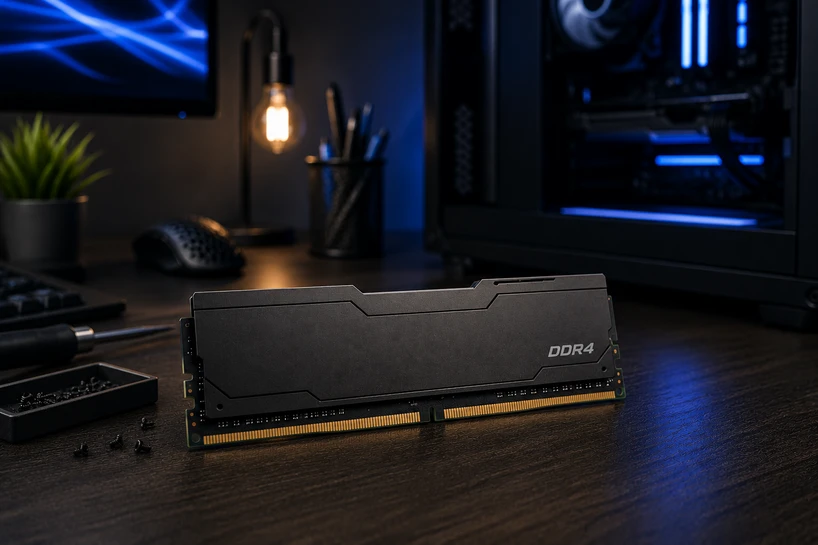
Desktop memory comes on a stick called a DIMM. Laptops use a shorter version called SO-DIMM, and the two are not swappable. You can't drop a desktop stick into a laptop, and vice versa. The slots are shaped differently on purpose.
There's another split too. Most desktops and gaming PCs run unbuffered memory, the standard consumer kind. Servers and heavy-duty workstations often use ECC memory, which can catch and fix tiny data errors on the fly.
ECC costs more and needs a board that supports it, so it's overkill for a normal desktop but a must for machines running critical, always-on tasks.
If you handle procurement across different machine types, keep this straight from the start. Ordering the wrong form factor or the wrong error-correction type is a common and annoying mistake that sends whole shipments back.
Choose the Correct Generation: DDR4 vs DDR5 Desktop Memory
New memory generations don't show up just to sell you something. Each one brings a real jump in bandwidth and power efficiency, meaning it moves more data while sipping less juice. That's why DDR5 exists, and why DDR4 replaced DDR3 before it.
The catch: your motherboard and CPU socket decide which generation you can use, and there's no mixing. A DDR5 board takes only DDR5. A DDR4 board takes only DDR4. The sticks are physically keyed so you can't even force the wrong one in.
By 2026, DDR5 is the default for any new build. Mainstream Intel and AMD platforms have fully moved over to it, and if you want a machine that stays useful for the next three to five years, that's the road. DDR4 still has its place, though, mostly for budget builds and for refreshing older systems that already run it.
Is DDR3 Desktop Memory Still Worth Discussing?
DDR3 is old, but plenty of office machines out there still run it. If you manage an aging fleet, you'll bump into it. The trouble is that DDR3 has largely reached end of life.
New stock is drying up, prices for what's left can be oddly high, and support is fading fast.
So when a DDR3-era machine needs memory, the smarter move is often to weigh replacement against repair. Sinking money into scarce old sticks for a system that's already slow rarely pays off. A newer machine will cost more upfront but save you the hunt and the headaches.
DDR4 Desktop Memory: Still a Smart Buy?
Yes, in the right situation. DDR4 costs noticeably less per gigabyte than DDR5, and it's still sold and supported everywhere.
If you're building on a tight budget or refreshing machines that already use DDR4 boards, it's a sensible pick that gets the job done.
Where it starts to fall short is with the newest, heaviest workloads. DDR4 tops out lower than DDR5 on both speed and bandwidth, so demanding tasks like large AI jobs or high-frame gaming will feel the ceiling sooner. For everyday work, though, that ceiling is far away.
DDR5 Desktop Memory: The Standard
DDR5 runs at higher base speeds, pushes more bandwidth, and handles power more efficiently than DDR4. That translates to smoother performance when you're loading it up with demanding apps.
The downside is cost. DDR5 carries a premium right now, made worse by the tight 2026 supply situation. But if you're doing a fresh build, running AI-assisted software, or you simply want the machine to stay current for years, DDR5 is where your money should go.
Your Ideal RAM Capacity: How Much Memory Do You Actually Need?
Capacity usually breaks into tiers: 8GB, 16GB, 32GB, 64GB and up, and those tiers make a handy starting map.
But here's the honest truth: more RAM doesn't fix everything. If your processor or drive is the slow part, piling on memory won't rescue you. You'll just have a big empty desk and a tired worker.
The right way to size memory is to look at what you actually do, not to assume bigger is always better. And leave yourself some headroom. You want room for a few extra tabs and background apps, not just enough for exactly what's open today.
Capacity for Everyday and Business Computing
For browsing, email, and office programs, 8GB to 16GB covers it comfortably. That's the baseline for most desk jobs. If your team runs ERP, POS, or other line-of-business software, lean toward the higher end so nothing stutters when several tools are open at once.
For businesses buying in bulk, standardizing on one spec across every machine makes support and future upgrades far simpler.
And note the trend: with AI features now built into everyday business tools, the sensible baseline has crept up. Many companies now treat 16GB as the floor rather than 8GB.
Capacity for Gaming, Creative, and Power-User Workloads
For gaming, 16GB to 32GB is the sweet spot in 2026, plenty for modern titles with a browser and chat app running alongside.
Step up to 32GB to 64GB and beyond if you edit video, render 3D scenes, or run CAD software, since those tasks devour memory.
Working with local AI models or crunching big datasets pushes the need higher still. And at the top end sit workstations running 64GB to 128GB or more, a setup most people never need, but that's essential for heavy professional and business jobs.
Desktop Memory Speed vs Capacity: What Actually Matters More?
Speed is measured in MHz or MT/s, which is just how fast the memory shuttles data back and forth. Higher numbers mean quicker transfers.
You'll also see CAS latency listed, which measures the tiny delay before the memory responds. Latency matters, but for most buyers it sits well behind capacity and raw speed on the priority list.
So which wins? It depends on your work. Speed pulls ahead for gaming, rendering, and anything sensitive to response time, where every millisecond shows up in the result.
Capacity pulls ahead when you're juggling loads of apps, running virtual machines, or keeping thirty browser tabs alive at once. Run out of room, and no amount of speed saves you.
The smart play for most people isn't maxing out either one. It's balancing the two within your budget. Enough capacity to never hit a wall, paired with a reasonable speed rating, beats a tiny amount of blistering-fast memory or a huge pile of slow sticks.
Single Channel vs Dual Channel RAM: Which Should You Choose?
Picture memory channels as lanes on a road. Single channel is one lane; dual channel is two lanes side by side, so more data flows at once. Same destination, just less traffic.
That extra lane makes a real, measurable difference, especially in gaming and on systems leaning on integrated graphics, where dual channel can noticeably lift frame rates. To get it, you need a matched pair, two identical sticks with the same capacity and speed, seated in the right slots.
Single channel is fine for light, entry-level machines and the tightest budgets. But for most 2026 builds, dual channel is the default worth aiming for. Buying one 16GB kit made of two 8GB sticks usually beats a single 16GB stick, so plan for the pair from the start.
Compatibility Checklist: Avoiding Costly Memory Mismatches
Before you buy, run through this quick list. It saves returns and dead builds.
- Socket and chipset: Confirm your motherboard takes the generation you're buying. DDR4 and DDR5 boards are not interchangeable.
- Max capacity and slot count: Check the highest capacity your board supports and how many slots it has, so you don't buy more than it can use.
- Memory rank: Boards handle single-rank and dual-rank modules differently. Verify yours supports what you're picking.
- XMP or EXPO profiles: To hit a kit's rated speed, your board needs to support these profiles, then you switch them on in the BIOS.
- BIOS updates: Newer memory kits sometimes need an updated BIOS to run properly. Check before you install.
Picking RAM as a Gamer, Builder, or Everyday Upgrader
If you're building or upgrading your own machine, match your RAM to the rest of the parts. Pairing a strong CPU and GPU with too little or too slow memory holds the whole system back, so buy memory that fits the company it's keeping, not in isolation.
RGB lighting and fancy heatsinks look great, but treat them as a nice extra, not the reason you choose a kit. Function first. If you like to overclock, look for kits with some headroom, and check that your board and cooling can handle the push.
First-time builders should weigh budget kits against performance-tier ones honestly.
Spend where it helps your actual use, and don't pour money into capacity you'll never touch. A 32GB kit sitting half-empty forever is money that belonged in your GPU.
Knowing When and How to Upgrade Your Desktop Memory
How do you know it's time? Watch for the signs: apps that lag, memory usage pinned near the top, and sluggish switching between programs.
When your machine crawls the moment you open a few things at once, it's asking for more room.
Before you buy, check how many memory slots you have and how many are free. If you've got an open slot and a matching stick, you can add memory. If not, you may need to replace the whole kit. When you do add sticks, match the new ones to what's already in there, same capacity and speed, or dual-channel won't behave.
For businesses upgrading a fleet, professional installation keeps things consistent and warranty-safe. For a home build, it's a simple DIY job: pop the case, press the sticks in until they click, done.
Getting your memory right is one piece of a bigger picture. If you want to understand how RAM ties into overall system performance and how to match capacity to your real needs, read our Complete Guide to Memory, Performance & How to Choose the Right Capacity in 2026, which pulls all these threads together in one place.
Making the Right Memory Decision With Server Blink
Boil it all down and four decisions shape your buy: the generation (DDR4 or DDR5), the capacity, the speed, and whether you run single or dual channel. Get those four right and everything else falls into place.
Timing matters more this year than usual. With memory prices high and supply tight, a well-informed purchase saves real money and spares you the frustration of buying the wrong thing twice.
Server Blink stocks a full range across both DDR4 and DDR5 desktop memory, so whether you need a single stick for a home upgrade or bulk quantities for a business rollout, the options are there.
Browse the Server Blink memory catalog to compare kits, or reach out to the team for help planning a larger procurement order.
Conclusion
The right memory keeps your system from bogging down and cuts the app crashes that come from running out of working room. It's a small part of the machine that shapes how the whole thing feels every day.
Treat it as an investment, not an afterthought. Whether you're future-proofing a corporate fleet or building a gaming rig meant to last, the memory you choose today decides how long that machine stays capable.
Frequently Asked Questions
A: Start with your motherboard to find the right generation, then size capacity to what you actually do, pick a sensible speed, and aim for a dual-channel matched pair. Those four steps cover nearly everyone.
A: Yes, but how much depends on the task. Gaming and rendering feel faster with faster memory. Everyday browsing and office work notice it far less, where having enough capacity matters more.
A: For most people in 2026, yes. It handles browsing, office work, and mainstream gaming well. Heavy video editing, 3D work, or local AI tasks are where you'll want 32GB or more.
A: Look up your motherboard's supported generation, maximum capacity, slot count, and memory rank. Confirm it supports XMP or EXPO for rated speeds, and check whether a BIOS update is needed.
A: When you see lag during multitasking, memory usage sitting near full, and slow switching between apps. Check your free slots first, then either add a matching stick or replace the kit.
A: Yes. Server Blink carries both DDR4 and DDR5 desktop memory for individual buyers and bulk business orders, with support available for larger procurement needs.