Press the power button on a desktop computer and a lot happens in about ten seconds. Power reaches the supply unit, which turns wall current into the low voltages the parts can safely take.
A small chip on the motherboard wakes up, checks what is connected, then pulls the operating system off the drive and copies it into memory. By the time you see the login screen, the processor has already run billions of instructions.
Millions of desktops repeat that routine every morning, and almost nobody thinks about it.
What Is a Desktop Computer?
A desktop computer is a personal computer built to sit in one place and run on wall power instead of a battery.
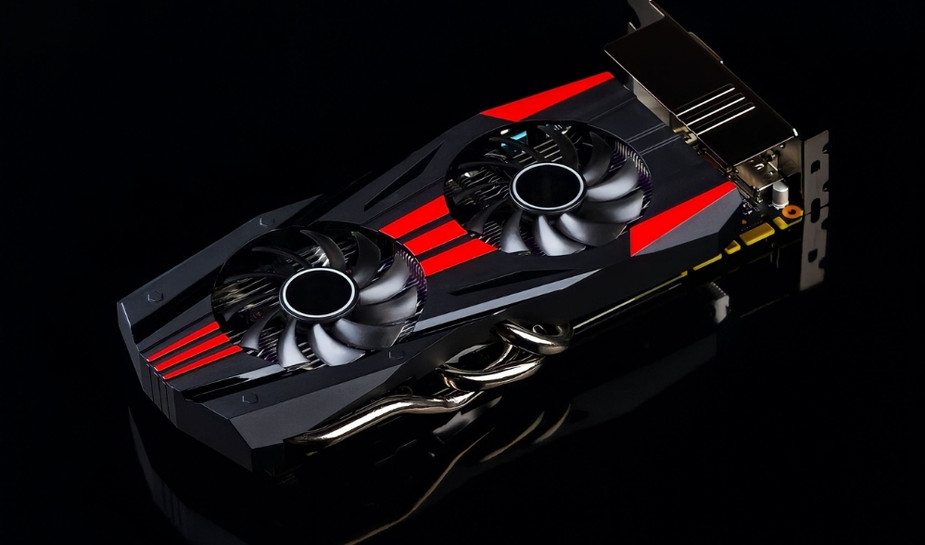
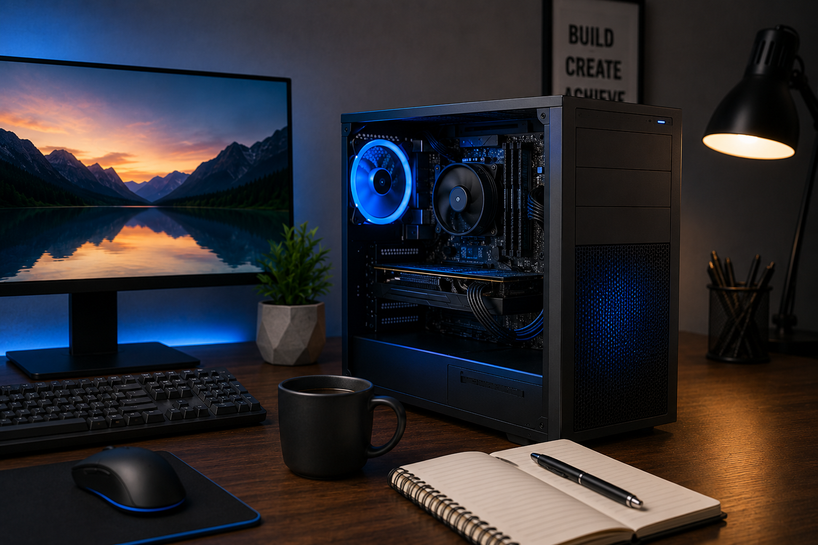
The main parts live inside a case: the motherboard, the processor (CPU), memory (RAM), storage, a graphics card in many builds, the power supply, and fans or a liquid cooler to dissipate heat. The monitor, keyboard, and mouse plug in from outside.
The purpose is simple. A desktop takes your input, works on it, and shows the result. Typing a report, editing a photo, joining a video call, playing a game: all of it runs through the same loop of input, processing, and output.
What separates a computer desktop from a laptop or tablet is room to breathe. A tower has space for large heatsinks, so chips run at full clock speed for hours instead of slowing down after a few minutes.
Parts unscrew and swap out, so a five-year-old machine can take a new drive, more RAM, or a newer graphics card. And for the same money, a personal desktop computer gives you more speed than a portable device.
Types of Desktop Computers
Three shapes cover most of the market. They run the same software, but they differ in size, heat handling, and how much you can change later.
|
Desktop Type |
Common Use |
|
Desktop Tower PC |
Gaming, video and 3D work, CAD, office machines meant to be upgraded later |
|
Mini Desktop PC |
Reception counters, classrooms, home media setups, light office work in small spaces |
|
All-in-One PC Desktop |
Front desks, home study rooms, shared areas where one tidy unit matters |
-
Desktop Tower PC
The tower is the classic box. It holds a full-size motherboard, a socketed processor you can replace, four memory slots on most boards, several drives, and a graphics card that draws its own power from the supply.
Airflow is why towers stay fast: cool air enters the front, hot air leaves the back and top, so the chips never sit near their heat limit. Pick this type if you want to change parts over the years.
-
Mini Desktop PC
A mini desktop PC fits in half a litre to two litres of space and bolts to the back of a monitor on many models. It uses laptop-class chips with graphics built into the processor, so it draws far less power than a tower.
You can swap the memory and the SSD, and that's about it. For browsing, office files, billing counters, and digital signage, it does the job and stays quiet.
-
All-in-One PC Desktop
An all-in-one PC desktop hides the computer behind the screen, so one power cable runs the whole setup. Nothing sits on the floor and nothing tangles.
The trade-off is heat and repair. Slim bodies limit how hard the chip can push, and opening one takes more care than sliding off a tower side panel.
Inside Desktop Computer Data Processing
Everything inside a desktop is stored and moved as electrical signals that stand for 1s and 0s. Text, photos, video, and program code all become long strings of those two values before anything happens to them.
The processor works in a repeating cycle. It fetches the next instruction, decodes what it means, carries it out, then writes the result back.
A modern desktop computer chip runs several billion of those cycles per second on each core, and many models hold two threads of work per core.
Speed depends on how close the data sits to the processor. Each core keeps a tiny L1 cache of roughly 32 to 80 KB that it reaches in about a nanosecond.
A shared L3 cache of 16 MB to 96 MB sits a step further out. RAM takes around 70 to 100 nanoseconds, close to a hundred times slower than L1, and an NVMe SSD is slower again at microsecond speeds. The design exists to keep the busiest data near the top of that ladder.
RAM is short-term. Cut the power, and it empties, which is why unsaved work disappears in a power cut.
Your SSD or hard drive is long-term and keeps files after shutdown. PCIe lanes act as the highway between the processor, the graphics card, and the drives.
How Desktop Computers Perform Tasks
The operating system sits between you and the hardware. Windows, macOS, or Linux keeps a list of every running program, hands each one a slice of processor time, assigns it a block of memory, and stops any program from reading another program's data.
Say you double-click a browser icon. The system finds the program file on the drive, copies the code it needs into RAM, and creates a process for it.
The processor runs that code. When a page needs drawing, the graphics chip fills the pixels. When it needs data, the network card fetches it. Drivers translate general commands into the exact language each piece of hardware understands.
All this happens while a few hundred background processes keep running: antivirus scans, update checks, printer services, sync tools.
The scheduler switches between them thousands of times a second, which is why a desktop PC feels like it does everything at once.
Desktop Computers in Everyday Use
Most desktop time goes to work. Documents, spreadsheets, accounting software, email, and video calls run for hours at a stretch, and the big screen plus a real keyboard is why offices still buy desktops instead of handing everyone a tablet.
Browsing comes next. Every open tab holds its own memory, so thirty tabs can eat several gigabytes. 16 GB of RAM handles that comfortably in 2026, while 32 GB suits 4K video editing, virtual machines, and large design files.
Then there's everything else: gaming, streaming, music production, home budgets, and school assignments.
One box handles all of it because the software changes while the hardware underneath stays general-purpose.
If you are planning a full setup, from a single home machine to a small office network with shared storage, our PC & Servers Setup Guide 2026: From Home to Business Use walks through choosing parts, sizing storage, and connecting everything properly.
Advancements in Desktop Computers
Storage made the biggest jump. Hard drives moved data at roughly 150 MB per second. SATA SSDs pushed that to around 550 MB per second, and NVMe drives now cross 7,000 MB per second on common PCIe 4.0 models. That one change is why an old machine with a new SSD feels new again.
Processors went wide instead of just fast. Chip makers added cores, then mixed large performance cores with smaller low-power cores so background jobs stop stealing time from your main work.
Memory moved from DDR4 to DDR5, USB4 ports now carry 40 Gbps, Wi-Fi 7 raised wireless speeds, and coolers got quieter while handling more heat.
Future Trends in Desktop Computers
AI is moving onto the desk. New desktop processors ship with an NPU, a section of the chip built for AI maths, rated in TOPS. Microsoft set 40 TOPS as the bar for its on-device Copilot+ features, and that number is shaping what chip makers build.
Live captions, background noise removal, photo cleanup, and local chat models can then run on your own machine instead of a server.
Local AI also pushes memory upward, so 32 GB is becoming the sensible starting point for that kind of work. PCIe 5.0 SSDs are reaching around 14,000 MB per second.
Arm-based desktop chips are gaining ground for low power builds, and repairable, modular designs are getting attention as electronic waste rules tighten.
Conclusion
A desktop computer works by turning your commands into binary instructions, running them through the processor in a fetch, decode, execute cycle, holding active data in RAM, and keeping files permanent on the drive.
The operating system decides who gets processor time and memory, and the hardware does the rest.
Knowing that chain helps you spot why a machine is slow, what to upgrade first, and which type of desktop suits your space.
Faster storage, wider processors, and on-chip AI keep changing what a desktop PC handles, without changing how it works underneath.
Frequently Asked Questions
A: A desktop computer is a personal computer designed to stay in one location and run on mains power. Its processor, memory, storage, and power supply sit inside a case, with a separate monitor, keyboard, and mouse connected to it.
A: People use desktops for office documents, accounting, email, video calls, browsing, online classes, gaming, video editing, and music production. The large screen, full keyboard, and steady performance suit long working sessions.
A: All data is converted into binary 1s and 0s. The processor fetches an instruction, decodes it, executes it, and writes the result back, repeating billions of times per second. Active data stays in cache and RAM, while files live on the SSD or hard drive.
A: The operating system loads a program's code from storage into RAM and creates a process for it. The processor then runs that code, the graphics chip draws what appears on screen, and drivers pass commands to each piece of hardware.
A: Storage moved from hard drives at about 150 MB per second to NVMe SSDs above 7,000 MB per second. Processors gained multiple cores and mixed core designs, memory moved to DDR5, and ports like USB4 now carry 40 Gbps.
A: Smaller manufacturing processes, low-power cores that take over light background jobs, smarter power states during idle time, and better cooling all cut electricity use while keeping performance high.
A: The power supply converts AC mains into steady DC voltages. The motherboard firmware (UEFI) runs a power-on self-test to check the processor, memory, and drives. It then loads the bootloader from the drive, which loads the operating system kernel into RAM and hands over control.