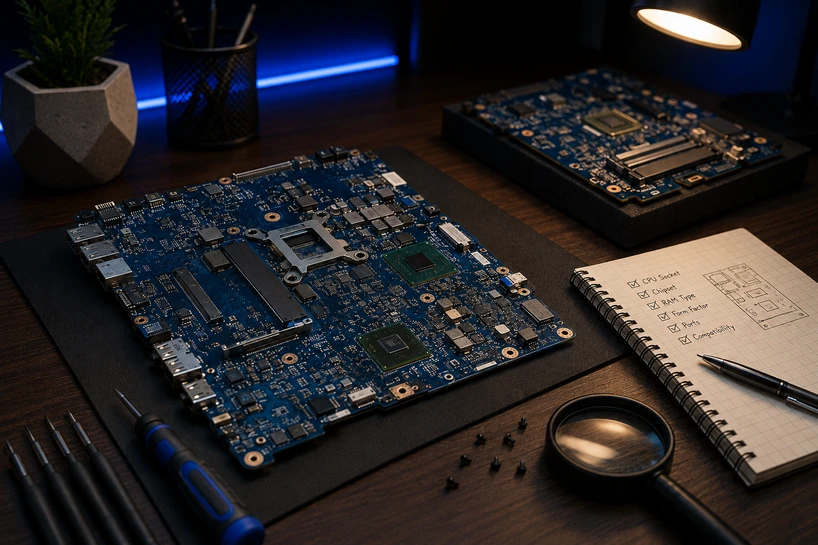
Buying laptop motherboards works nothing like buying a desktop board. You can't pick a brand you trust and hope it drops in.
The board has to match your exact machine, right down to the part number printed on the PCB, because the processor is soldered on, the memory type is locked in, and the screen cable fits one socket and no other.
Get it wrong, and the laptop stays black, or the fan spins for two seconds and stops. Most sellers mark a board non-returnable the moment it enters a chassis, so the mistake costs you the full amount.
That one board ties everything together. The CPU sits on it, memory channels feed it, the SSD talks to it over PCIe lanes, and the battery, keyboard, Wi-Fi card and display all land on connectors soldered to it.
Match it properly, and the repair is routine. Miss one detail and you have bought scrap.
Understand the Role of a Laptop Motherboard
What Is a Motherboard in a Laptop?
A laptop motherboard is the single circuit board carrying the processor, memory channels, storage lanes, power circuits, and every port on the machine.
A desktop splits those jobs across swappable parts. A laptop prints them onto one surface, which is why one failed component can take the whole machine down.
How It Connects and Supports Key Hardware
The CPU sits at the centre. It reaches memory through channels wired into the board's copper layers and reaches storage through PCIe lanes ending at the M.2 slot.
Power enters at the DC jack or USB-C port and gets split by small regulators feeding the CPU core, memory, GPU and backlight separately. The panel connects over a thin eDP ribbon, while Wi-Fi, speakers, camera and trackpad each land at their own plug.
Why Compatibility Matters So Much
Laptop motherboard compatibility is a match, not a range. Two laptops with the same name on the lid can carry different boards, one built for a dedicated GPU and one for integrated graphics, or one wired for a 60Hz panel on 30 pins and the other for 144Hz on 40 pins. Boards are built per configuration, never per model name.
Identify Your Laptop Model and Specifications
Start with the exact model number, not the marketing name. Read the sticker under the base, open the BIOS screen, or run msinfo32 in Windows and check the System Model and BaseBoard Product lines. "Inspiron 15" tells you nothing. "Inspiron 15 3520, P112F001" tells you everything.
Next comes the board's own number. Dell prints a DP/N code, HP uses a spare part number on a white label, Lenovo calls it an FRU.
The manufacturing house prints its own code on the PCB too, such as an LA series from Compal, DA series from Quanta, or NM series from Wistron, followed by a revision letter. Rev 1.0 and Rev 2.0 boards can differ electrically.
Service manuals list every board variant a model shipped with, split by processor and graphics option. Match your code against that list, because visual matching fails.
Layouts stay identical across variants while the soldered parts change underneath. Same screw holes, same connectors, different silicon.
|
What to match |
Where to find it |
|
Model and regulatory ID |
Base sticker, BIOS, msinfo32 |
|
Board part number |
Label on the board, service manual |
|
Board revision |
Silkscreen text on the PCB |
|
CPU and GPU variant |
Original spec sheet or invoice |
Check Processor and Chipset Compatibility
Understand CPU Integration
Nearly every board sold in 2026 arrives with the processor soldered in a BGA package. Buying the board means buying that exact CPU, so read the listing closely. A board with a Core i5 will not become an i7 later.
Bare boards without a processor still exist for older socketed machines, mostly Intel rPGA models up to the 9th generation plus a few thick gaming and workstation chassis.
Match the Correct Chipset
The laptop motherboard chipset decides how many PCIe lanes reach your SSD, how fast the USB ports run, whether USB4 or Thunderbolt works, and how many external screens the machine drives.
On Intel U and H-class parts, it sits inside the processor package, so it is fixed once the CPU is fixed. HX class boards carry a separate chipset that adds extra lanes and SATA ports.
AMD follows the same logic through package type. Ryzen AI 300 chips use FP8 while the previous generation used FP7 and FP7r2, and those do not interchange.
The chipset role in system performance shows up as SSD speed limits, port bandwidth, and display output rather than raw processing power.
Verify Memory (RAM) Support
Check RAM Type
A DDR4 laptop motherboard takes SO-DIMM modules around 3200MT/s and sits in machines built before the DDR5 switch.
A DDR5 laptop motherboard runs SO-DIMM DDR5 from 4800MT/s upward, while thinner models use soldered LPDDR5X or newer LPCAMM2 modules. The notches differ between the two, so nothing fits by accident.
Three things set your ceiling: supported type, maximum capacity, and slot count. A board with 16GB soldered and one free slot behaves nothing like a board with two open slots.
Soldered memory never changes, so what the board carries is what you keep.
Confirm Storage Compatibility
Review Storage Interfaces
Check whether the board offers a 2.5-inch SATA bay, an M.2 slot, or both. M.2 slots vary in length, mostly 2280 and 2242, and in keying.
An M key slot carries NVMe drives on PCIe lanes, while a B+M key slot may be wired for SATA only, which accepts some NVMe drives and then refuses to detect them. PCIe generation shifts with the board too, from Gen 3 near 3.5GB/s up to Gen 5 on newer performance models.
Evaluate Expansion Capabilities
Some boards carry a second M.2 slot or a WWAN slot that takes a short 2242 drive, so you can add storage later without cloning anything. Variants with two slots are worth the extra.
Evaluate Graphics and Display Support
Boards ship as UMA versions running on the processor's built-in graphics, or as dedicated versions with the GPU and its memory soldered beside the CPU. These carry separate part numbers, separate power circuits, and separate cooling layouts.
VRAM capacity splits part numbers as well, so a gaming laptop motherboard built for an 8GB card differs from the 6GB version of the same model.
Count the pins on your eDP connector and check panel resolution and refresh rate against the board variant, since high refresh and touch panels use different wiring.
Inspect the Motherboard Condition Before Purchasing
Ask for clear, well-lit photos of both sides before money moves. Look for scorch marks near the DC jack and power regulation area, cracked corners at screw posts, chipped ceramic parts, and bent port shields.
Liquid damage leaves its own fingerprints. White or green crust around connectors, brown staining on the solder mask, or a triggered liquid indicator sticker all point to a spill. Washed boards can pass a short test and fail weeks later as corrosion keeps eating traces.
Check the plastic connectors as well. ZIF latches snap easily, and a torn eDP socket means no display, no matter how healthy the rest is.
Sellers running real quality checks will show a POST photo or boot video, state a tested warranty period, and ship in anti-static packing.
Check BIOS and Firmware Compatibility
When a BIOS Update Is Required
Every board arrives with firmware already flashed. It holds supported CPU steppings, memory training data, storage detection and security patches, so an old version can refuse a newer stepping or fail to see a modern NVMe drive.
Restrictions catch people out elsewhere. Some business models keep a whitelist blocking unapproved Wi-Fi cards, and some boards stay locked to a region or configuration.
The service tag, serial number and system UUID live in the board's firmware too, so after a swap that data has to be written back with the maker's tool. Skip it, and you get fan errors at startup, missing warranty status, and Windows activation trouble.
Flash with the charger connected and a healthy battery fitted. A failed update leaves you with a dead board and a programming clip as the only way back.
Common Mistakes to Avoid When Buying a Laptop Motherboard
Shopping on appearance tops the list, since layouts repeat across variants that share nothing electrically. Skipping the part number comes next, then ignoring BIOS versions and firmware locks.
Chasing the cheapest listing hurts too, because rock bottom prices point at reballed boards, washed water-damaged units, or untested salvage stock.
A board with a real test video and a 30 to 90 day warranty costs more and risks far less.
Signs You May Need a Laptop Motherboard Replacement
Boards fail from heat cycles cracking solder joints, liquid spills, surges from cheap chargers, drops that flex the PCB, and dust-choked fans cooking the power circuits. The warning signs follow a pattern:
- No power at all, no LED and no fan movement, even with a known good charger
- The charger gets detected, but the battery never charges, or the port feels loose
- Random shutdowns, restarts and freezes that continue after a clean Windows install
- RAM, SSD, keyboard or Wi-Fi vanishing after you fit known good replacements
- Heat concentrated near the power section, or a sharp burning smell at startup
Test the charger, memory and drive first. Once those are clear, the board is the problem.
Laptop boards follow rules desktop builders never deal with, from soldered processors to per-configuration part numbers. If you are also picking parts for a desktop build or weighing form factors, sockets, and chipset tiers, read our guide, Choosing the Perfect Motherboard: A Complete 2026 Guide for PC Builders and Buyers, which covers the wider selection process and connects every board topic in this series.
Conclusion
Buying laptop motherboards comes down to matching and verifying. Confirm the model and part number, match the processor and chipset, check memory type and slot count, confirm the storage interface, pick the right graphics variant, inspect the condition, and ask about the BIOS version before you pay.
Ten minutes with part numbers protects your money and the machine you are trying to save. Rushing that step is what turns a repair into a replacement.
Frequently Asked Questions
A: The processor, memory slots or channels, the chipset, power regulation circuits, M.2 and SATA interfaces, the GPU on dedicated versions, the BIOS chip, and the display, keyboard and battery connectors.
A: Match the exact model and regulatory ID, the board part number and revision, the processor and graphics variant, and the display connector. Service manuals list every version a model shipped with.
A: A faulty stick or drive rarely kills a board, though a shorted module can pull down the memory rail and stop the machine posting. Bent slot pins and forced M.2 installs do more damage.
A: The BIOS starts the hardware, trains the memory, detects storage and graphics, then hands control to Windows. It also stores the serial number, system UUID and security settings.
A: Check the printed part number against the service manual, look for a clean factory barcode label, and inspect the solder around the CPU and GPU for rework signs like uneven flux or discoloured pads.
A: Yes. Repeated heat cycles crack the tiny solder balls under the CPU and GPU, and steady heat wears down power parts. That damage builds slowly, so a machine can run hot for a year before dying.
A: A gaming laptop motherboard sets the ceiling, since the CPU, GPU and memory are tied to it. It fixes the power limits those chips hold, the cooling layout and the PCIe generation your drive runs at.
A: Open the bottom panel and read the white label on the board, or check the service manual for your configuration. The code printed on the PCB and its revision letter confirm the match.
A: Almost always. Modern laptop processors are soldered during manufacturing, so board and CPU ship as one unit. Only older socketed models and a few thick gaming or workstation chassis take a bare board.