Your computer keeps everything on a drive sitting quietly inside the case. Photos, work files, games, backups, the operating system itself, all of it lives there.
For most people, that drive is an internal hard drive, and even with all the talk about flash storage, the internal hard drive is still doing a huge amount of the heavy lifting in 2026.
Data keeps piling up. A single phone photo can run past 5MB, a 4K video eats gigabytes by the minute, and one game install now regularly crosses 100GB. Businesses feel it even harder, with years of records, backups, and customer data that simply cannot be thrown away.
Personal users, offices, gamers, creators, and full data centers all lean on internal storage to hold this growing pile. A PC needs a fast drive to boot and work.
A laptop needs a small drive that sips power. A server needs a drive that runs day and night without complaint. Even office printers carry hard drives inside them.
Why Do Internal Hard Drives Still Matter?
Growing Data Demands in Modern Systems
We create more data every year, and it is not slowing down. Backblaze and other large operators report that overall shipped storage keeps climbing, and much of that demand is fed by hard drives because they hold so much per unit.
When you need somewhere to park terabytes of files without spending a fortune, a computer hard drive is still the sensible answer.
Cost-Effective Storage for Large Files
This is where hard drives shine. A big internal hard drive gives you far more space per dollar than flash storage.
In early 2026, high-capacity models often land somewhere around 20 to 25 dollars per terabyte, while fast SSDs cost several times more for the same room.
If you keep movie libraries, photo archives, or full system backups, that price gap adds up fast.
Reliable Performance for Everyday Computing
A good PC hard disk handles daily work without drama. Browsing, documents, media playback, and file storage all run fine on a modern drive spinning at 7200 RPM.
It is not the fastest thing on the market, but for steady, everyday use it does the job and keeps doing it for years.
Scalability for Business and Enterprise Use
Businesses love internal hard drives because they scale so cleanly. Need more room? Add another drive. Building redundancy? Stack several drives in a RAID setup.
From a small office server to a full data center, internal disk drives let a company grow storage step by step without ripping everything out and starting over.
Internal Hard Drives for Different Computing Environments
Desktop Hard Drives for High-Performance PCs
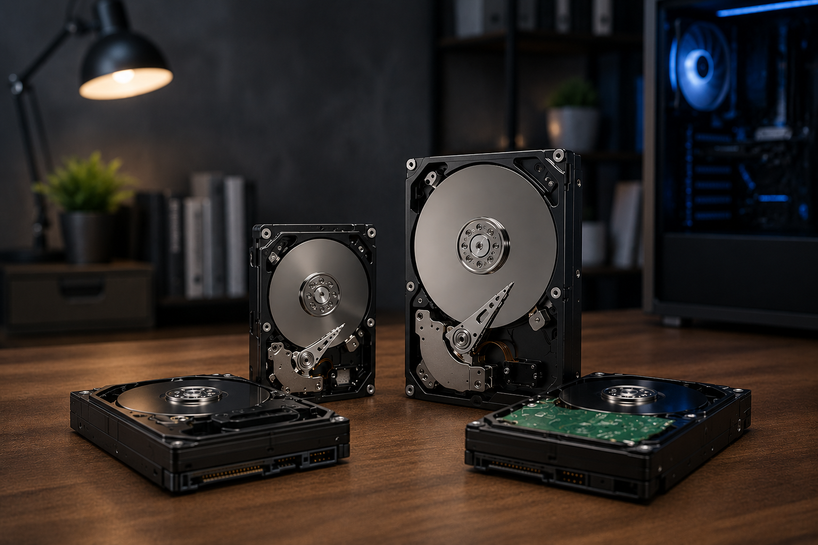
Desktop drives use the larger 3.5-inch shape, which allows more platters and more capacity.
A desktop hard drive is a strong choice for holding games, video projects, and large file libraries on a home or work PC, usually paired with a smaller SSD that runs the operating system.
Laptop Hard Drives for Portable Computing
Laptop drives are the smaller 2.5-inch type, built to fit tight spaces and run cool on battery power. A laptop hard drive trades some capacity and speed for a compact, low power design that suits life on the move.
Server Hard Drives for Enterprise Infrastructure
Server drives are the workhorses. A server hard drive is rated to run 24 hours a day, every day, and to handle heavy read and write loads that would wear out a normal drive.
Enterprise NAS and data center models carry ratings like a 550TB per year workload and a 2.5 million hour MTBF, which is a fancy way of saying they are built to keep spinning.
Printer Hard Drives in Business Environments
You might be surprised, but big office printers and copiers often have a hard drive inside. A printer hard drive stores print jobs, saved forms, scanned documents, and settings, which keeps busy print rooms flowing smoothly.
Storage Media Solutions for Modern Systems
Internal hard drives are one piece of a wider storage media picture that also includes SSDs, external drives, and network storage.
Most real setups mix these together, using each type where it fits best, and the internal hard drive usually handles the bulk capacity role.
Desktop Hard Drives for Gaming and Professional Use
Gaming PCs and creative machines push storage hard. Game libraries balloon, video timelines swallow space, and photo catalogs grow without end. A desktop hard drive gives you the room to keep it all in one place.
For raw gaming speed, you will want an SSD for the games you play most, since load times drop sharply on flash.
But a large PC internal hard drive is perfect for storing your full library, older titles, mods, and recordings that do not need lightning access. Creative workloads follow the same pattern. Editors keep active projects on an SSD and archive finished work on a roomy hard drive.
When you choose a desktop drive, look at capacity first, then spindle speed. A 7200 RPM drive with 256MB or 512MB of cache handles big files well.
Match the size to your needs, leave some breathing room, and you are set for years.
Laptop Hard Drives for Everyday Portability
Laptops ask a lot from a tiny drive. It has to fit a slim case, stay quiet, run cool, and not drain the battery. A compact 2.5-inch internal hard drive is built for exactly that.
Power efficiency matters here more than pure speed. Laptop drives draw less energy, which helps battery life and keeps heat down inside a packed chassis.
For students and everyday professionals who mostly write, browse, stream, and store files, a reliable internal hard drive handles daily use without a hitch.
That said, most new laptops now ship with SSDs for speed, and many people who still want a hard drive use it as extra storage in a desktop or an external enclosure.
If your laptop supports a 2.5-inch bay, a hard drive remains a cheap way to add real capacity for photos, videos, and backups.
Server Hard Drives for Enterprise and Business Use
Servers never sleep, so their drives cannot either. A server hard drive is engineered to run around the clock, which works out to 8760 hours a year, without the wear that would break a consumer drive.
RAID support is central here. Enterprise and NAS drives include features that keep them stable inside multi-drive arrays, such as vibration sensors and time-limited error recovery, so one drive does not drag down the whole group.
This is what lets businesses build storage that survives a single drive failure without losing data.
Internal hard drives for business use also come in large capacities, with common enterprise models running 20TB, 24TB, and higher.
Helium-sealed designs reduce friction and heat, letting these big drives pack in more platters while drawing less power. For a company storing years of records, that combination of capacity and endurance is exactly what it needs.
Printer Hard Drives in Commercial Workflows
In a busy office, the printer is doing more than you think, and the hard drive inside it is part of the reason.
That drive holds the print queue, so dozens of jobs can line up and process in order without jamming the system.
It stores saved documents, forms, and scan files that staff pull up again and again. It also plays a role in secure printing, where a job waits on the drive until the right person unlocks it at the machine, which keeps sensitive papers from sitting in the output tray.
All of this makes the print room faster and safer, and it runs on the quiet hard drive tucked inside the machine.
Internal Hard Drives vs SSD Technology
This is the choice most buyers wrestle with, so let us keep it honest.
On speed, SSDs win, and it is not close. An SSD boots your system, opens apps, and loads games far faster than any hard drive because it has no moving parts. If you want snappy response, flash is the answer.
On capacity and cost, hard drives win. You get many more terabytes per dollar from a hard disk, which makes it the smart pick for bulk storage, archives, and backups where speed matters less than room.
On lifespan, both can last for years when treated well. Large fleet data puts typical hard drive failure rates around 1 to 2 percent a year, with many drives running well past six years. SSDs handle shock better since nothing spins, but a hard drive in a stable, cool spot is very dependable.
So in 2026, the answer is usually both. Run your system and daily apps on an SSD, and keep your big pile of files on a computer hard drive. You get speed where you feel it and capacity where you need it.
Important Features to Consider Before Buying
Before you buy, check a few things, so you pick the right drive the first time.
Start with capacity. Buy more than you think you need today, since files only grow. Next comes RPM, the spin speed.
A 7200 RPM drive gives more performance than a slower 5400 RPM model, which suits desktops, while slower drives run cooler and quieter for archives.
Cache memory helps too. Modern drives carry 256MB or 512MB of cache, which smooths out transfers of large files. Then check the interface.
Most consumer and business drives use SATA hard drives running at 6Gb/s, which fits nearly every PC and NAS. Enterprise setups sometimes use SAS instead for higher-end servers.
Finally, think about heat, noise, and power. Faster drives run warmer and louder, so give them airflow. For a quiet home PC, a balanced drive keeps things calm without giving up much.
Choosing the Right Internal Hard Drive for Your Needs
Home and Personal Computing
For a family PC, a mid-size desktop hard drive around 2TB to 4TB paired with an SSD covers photos, documents, and media with room to spare.
Gaming and Creative Workloads
Gamers and creators should go bigger, 4TB and up, at 7200 RPM with a large cache, keeping an SSD alongside for active games and projects.
Office and Business Environments
Small offices do well with NAS-rated drives built for near-constant use, which handle shared files and backups reliably across the team.
Enterprise and Server Applications
Data centers and larger companies need enterprise drives rated for 24/7 duty, high yearly workloads, and RAID, with capacities of 20TB and beyond.
Want the bigger picture on every storage option, from SSDs and NAS to cloud and external drives? Our Ultimate Storage Devices Guide 2026 for Businesses & Personal Use pulls it all together and helps you build the right storage plan for your home or company. Read it next to see exactly where internal hard drives fit alongside every other choice.
Common Internal Hard Drive Problems and Solutions
Slow Performance Issues
If a drive feels sluggish, it may be nearly full or badly fragmented. Free up space, and on older Windows systems, run a defrag on the hard drive.
If your boot drive is the slow point, moving the operating system to an SSD makes the biggest difference.
Overheating and Thermal Problems
Heat is a drive killer. Dust buildup and poor airflow push temperatures up. Clean the case, add or check fans, and keep drives from being crammed together with no gap for air.
Detection and Connectivity Errors
If a drive does not show up, a loose cable is the usual culprit. Reseat the SATA data and power cables, try a different port, and check that the drive appears in the BIOS. Failing that, test it on another system to narrow the problem.
Data Backup and Recovery Solutions
No drive lasts forever, so keep copies of anything you care about. Follow a simple rule of three copies, on two types of media, with one kept offsite or in the cloud. If a drive starts clicking or dropping out, stop using it and recover your files right away.
Best Practices to Improve Hard Drive Lifespan
Proper Cooling and Airflow
Keep drives cool, and they last longer. Make sure air moves through the case, add a fan near the drive bays if needed, and avoid stacking drives right on top of each other.
Routine Maintenance and Monitoring
Check drive space now and then, clear out junk, and keep the case clean. A drive that is not choked with dust or filled to the brim behaves better and lives longer.
SMART Diagnostics and Health Checks
Every modern drive tracks its own health through SMART. Free tools read these numbers and warn you when things like reallocated sectors start climbing, which gives you time to back up and swap the drive before it fails.
Protecting Data with Backup Strategies
The drive is replaceable; your data often is not. Set up automatic backups so you never rely on a single drive. Between SMART alerts and steady backups, you rarely get caught off guard.
Future of Internal Hard Drives Beyond 2026
Hard drives are not fading away; they are getting bigger. AI and cloud growth have pushed enterprise demand so hard that supply is tight, with major makers reporting nearline drive orders sold out well into the year. That appetite keeps the whole category moving forward.
Capacity is the headline. New recording methods like HAMR have brought drives to 30TB and beyond, with roadmaps openly aiming at 100TB per drive later this decade.
For long-term storage, these big enterprise hard drives are the best home for archives that must sit safely for years at a low cost per terabyte.
The everyday future is hybrid. Most systems will keep pairing a fast SSD with a large hard drive, using each for what it does best.
In enterprise infrastructure, that split gets even clearer, with flash serving hot, active data and hard drives holding the vast cold storage underneath. The internal hard drive keeps its place as the affordable backbone of serious storage.
Conclusion
Picking the right internal storage comes down to matching the drive to the job. A gamer, a student, an office manager, and a data center each need something different, and the good news is there is a solid drive for every one of them.
Internal hard drives hold their long-term value by giving you huge capacity at a price flash storage still cannot touch.
That is why they remain the go-to for backups, archives, and bulk storage across homes and businesses alike. Reliable storage is the quiet foundation under everything a computer does, and a well-chosen, well-maintained hard drive delivers exactly that.
In 2026, the smart move is rarely one or the other. Pair an SSD for speed with an internal hard drive for space, keep your drives cool and backed up, and you get a setup that is fast, roomy, and dependable for years to come.
Frequently Asked Questions
A: Yes, for the bulk storage side. AI and cloud work generate massive data that has to live somewhere affordable, and high-capacity enterprise hard drives handle that cold storage well. Fast, active AI data usually runs on flash, while hard drives hold the huge archives underneath.
A: A 7200 RPM desktop drive of 4TB or more with a large cache is a great fit for storing your game library. Keep an SSD alongside it for the games you play most, so you get fast loads plus plenty of room.
A: Most healthy drives last around six years or more, with yearly failure rates near 1 to 2 percent based on large fleet data. Good cooling, clean power, and light dust go a long way toward reaching the higher end of that range.
A: In a desktop, yes. You open the case, mount the drive, connect SATA data and power cables, and set it up in your operating system. Laptops are trickier and many newer ones only take an SSD, so check your model before buying.
A: They help mainly with capacity, not raw speed. A hard drive lets you store a big library, but for faster load times you want your active games on an SSD. Using both gives you speed and space together.
A: They handle the large, low-cost capacity layer. In a hybrid setup, an SSD manages fast, everyday tasks while the hard drive stores the bulk of your files. This mix gives you strong speed and lots of room without overspending.
A: Big drives give you more space per dollar, fewer drives to manage, and a simple way to store years of files, backups, and media in one place. For archives and long-term storage, that low cost per terabyte is hard to beat.