Laptop storage has changed, yet hard disks still hold large amounts of data cheaply. A Laptop Hard Drive can store work, photos, videos, games, archives, and backups.
Storage choices matter more in 2026 because systems, updates, games, media, and project files keep growing. AI tools also create model files, caches, drafts, and exports.
Many new laptops use solid-state storage for speed. The Laptop HDD still serves older machines, budget systems, secondary bays, and portable cases.
Buyers needing several terabytes may care more about capacity than instant loading. Check fit, speed, power, and workload.
The Role of Laptop Hard Drives in Modern Laptops
A hard disk stores data on spinning magnetic platters. Many thin laptops lack a 2.5-inch bay. Older, refurbished, and budget laptops may still accept a Laptop Disk Drive.
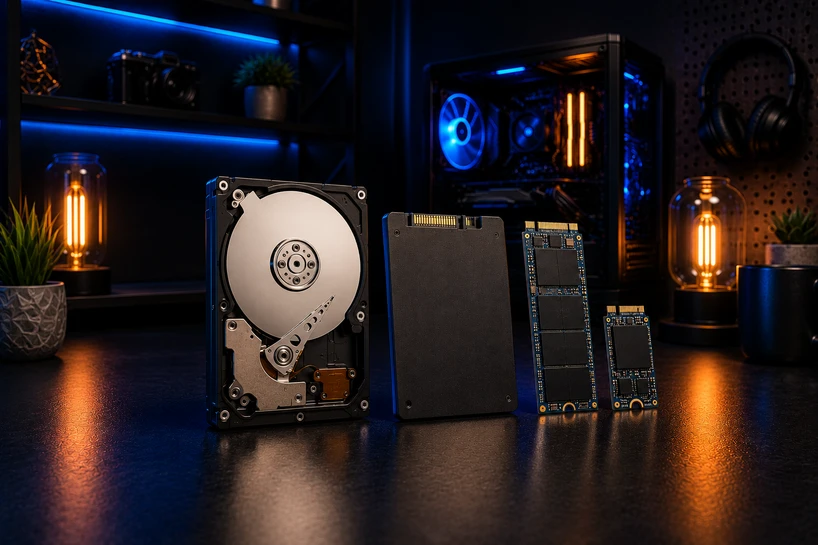
Some pair a fast SSD with an HDD for games, media, and archives.
This mixed setup gives the system quick SSD access and leaves low-cost Laptop Disk Storage for slower files. A roomy disk can hold video libraries, projects, installers, disk images, and old work without crowding the drive.
Laptops move, get bumped, and run on batteries. Since an HDD has moving parts, balance capacity and price against weight, sound, power draw, heat, and shock risk.
Inside Laptop Hard Drive Technology
A Laptop Hard Disk records information in tiny magnetic areas on platters. A spindle motor turns them while an actuator moves the read and write heads across data tracks. The heads sit very close to the surface, so hard impacts can harm a running drive.
RPM shows platter rotations per minute. A 7200 RPM model can reach data sooner than a 5400 RPM drive.
Platter density, firmware, cache, file layout, and workload shape speed. Faster rotation may use more power and create more heat and sound.
Most internal 2.5-inch laptop disks use SATA. A SATA 6 Gb/s label marks the interface limit, not platter speed. Current models may transfer large files at 100 to 160 MB/s. The laptop needs matching SATA connections.
Laptop Hard Drives for Different Types of Users
Students may find 1TB enough for documents, downloads, photos, classes, and light media. The best Laptop Hard Drives for everyday computing must fit and leave room for updates and future files.
Office and remote workers need capacity plus backups. A Laptop HDD can hold reports, email archives, design files, and records, yet it should never hold the only copy. A separate Laptop Backup Drive protects work after theft, liquid damage, or failure.
Gamers can keep large libraries on an HDD, though loading and updates take longer than on an SSD. Keep competitive games and asset-heavy titles on the SSD. Store older or rarely played games on the hard disk.
Photo, audio, and video workers can keep finished projects, raw archives, and copies on a high-capacity drive. Active editing runs better on an SSD. Reliable Laptop Hard Drives for business and personal use suit storage devices and backup more than demanding work.
What to Check Before Buying a Laptop Hard Drive
Start with physical fit. Most laptop disks use a 2.5-inch width, but height matters. Thin bays may accept only 7mm drives. Some 15mm models offer more capacity yet will not fit many laptops. Check the manual, bay depth, connector, and mounting frame.
Compare 5400 RPM and 7200 RPM. Choose 5400 RPM for lower power use, heat, and sound. Choose 7200 RPM for quicker access when the laptop can handle extra warmth and battery use. Neither matches an SSD for startup or loading.
Cache gives the disk fast memory for recent or queued data. More cache can help short bursts, but it cannot remove mechanical delay. Plan capacity honestly. Leave space for updates, temporary files, and growth because a nearly full disk can slow down.
Laptop HDD Performance in Real-World Usage
A laptop that boots from an HDD feels slower than an SSD-based machine. Startup, login, antivirus scans, browser launches, and large programs ask the drive to find many small files. Mechanical head movement makes those mixed requests slow.
Large continuous transfers suit hard disks better. Moving one video can run more steadily than opening thousands of small photos.
Fragmentation can add head movement, though Windows can schedule drive care for recognized hard disks.
Multitasking puts heavy pressure on a Laptop Storage Drive. The system may stall while it updates software, scans files, copies data, and opens a large program. More memory can reduce paging, but it cannot make the disk seek faster.
Gamers should keep free space and avoid downloading or copying files while playing. The HDD can hold many titles at a fair cost, while an SSD stores games that need shorter loading times.
Common Laptop Hard Drive Issues
Hard disks can slow down after file-system errors, low free space, competing background tasks, or repeated reads from weak sectors. Heat, age, shocks, and heavy use can add mechanical wear.
Watch for repeated clicking or grinding, long freezes, missing files, damaged folders, startup repair loops, disk errors, and a drive that vanishes from firmware.
Slowness alone does not prove failure because low memory, malware, updates, and cooling faults can cause it too.
A laptop may miss a disk because of a loose connector, damaged cable, controller fault, wrong firmware setting, or dead drive. Shut the laptop down before checking the bay. Back up readable data before running long tests on a failing disk.
SMART data tracks temperature, spin-up trouble, read retries, and bad sectors. A SMART warning means you should copy your data at once. A clean result cannot promise future survival, so every user still needs backups.
Tips to Extend Laptop Hard Drive Lifespan
Move the laptop gently while the disk works. Avoid vibrating surfaces and soft material that blocks cooling vents. Let the laptop sleep or shut down before carrying it through rough travel.
Keep vents clear and remove dust according to the maker’s instructions. Avoid sudden power loss during file writes. Use a healthy battery or surge protection where unstable electricity causes shutdowns.
Check SMART status and run the drive maker’s short test at sensible intervals. Replace the disk after repeated errors, rising bad-sector counts, loud mechanical sounds, or failed tests. Never open the sealed drive body.
Keep one copy on the laptop, another on separate Portable Laptop Storage, and a third in another location for irreplaceable files. Test restored files now and then so you know the backup can work.
Future of Laptop Hard Drives in Portable Computing
New laptops will keep favoring SSDs for the operating system because people expect quick startup, quiet use, and thin cases. Laptop HDD technology still fits jobs where cost per terabyte matters more than response time.
Local AI work, high-resolution video, games, and long project histories can consume large amounts of space. Hard disks can hold source files, model files, exports, and archives at a lower cost, while SSDs handle current software and active projects.
Physical height will limit internal upgrades. High-capacity 2.5-inch models may fit external cases or larger laptops rather than thin machines. Buyers must check the bay instead of assuming every 2.5-inch disk will fit.
For a wider view of drive types, interfaces, uses, and buying checks, read our guide, Internal Hard Drives Explained for Every User in 2026. It connects laptop storage with desktop, gaming, backup, and work needs.
Conclusion
Choose storage around your weekly work. Pick an SSD as the main drive when startup, loading speed, quiet operation, and battery life matter most. Add a Laptop HDD when you need affordable space for media, games, archives, or backups.
A hard disk still offers real use in 2026, especially in compatible older laptops, dual-drive systems, and portable cases.
Check bay height, SATA support, capacity, RPM, cache, power needs, warranty, and backup plans before buying. Do not ask a mechanical disk to perform like an SSD.
Frequently Asked Questions
A: Yes. They suit archives, local records, and backup copies. Business users should keep another copy away from the laptop.
A: Yes. It can store and run games, but an SSD loads many titles faster.
A: No fixed age applies. Heat, shocks, workload, and build quality shape its life. Start backups on day one.
A: Drops, vibration, heat, worn moving parts, electrical faults, and damaged sectors can cause failure.
A: A 7200 RPM disk reaches data sooner. A 5400 RPM disk tends to use less power and run cooler.
A: Keep free space, stop needless background work, check drive health, and place speed-heavy software on an SSD.
A: It can run office software, but startup, updates, searches, and large applications will feel slower than on an SSD.