Most desks end up holding more than one computer. A work laptop next to a personal tower. A main PC beside a second machine for testing.
A Mac for design work and a Windows box for everything else. Each machine wants its own keyboard, its own mouse, its own screen, and before long you're reaching across three keyboards to answer one email.
A KVM switch clears that mess. One keyboard, one mouse, one monitor, and a button that hands all three to whichever computer you want.
What Is a KVM Switch?
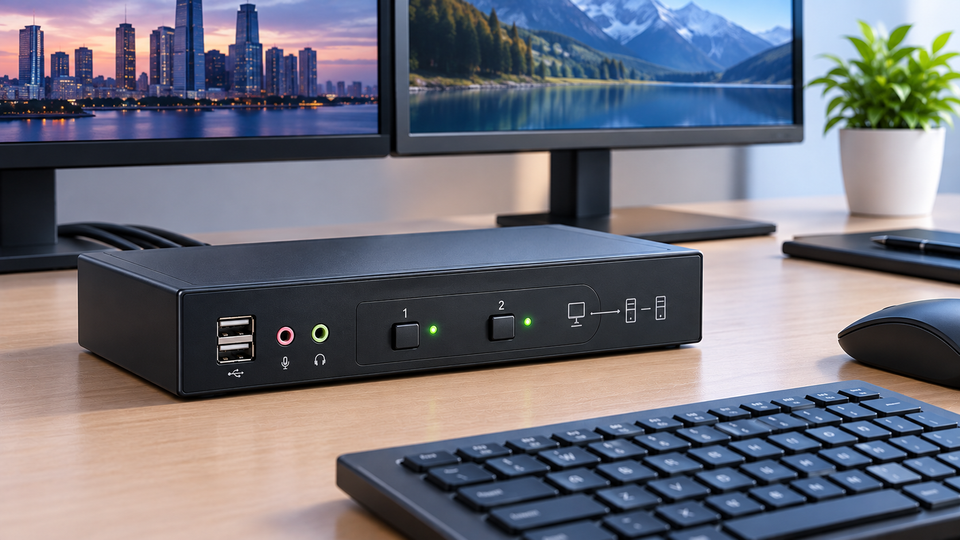
A KVM switches is a small box that sits between your peripherals and two or more computers. Your keyboard, mouse, and monitor plug into the box once.
Each computer connects to the box with its own set of cables. Press a button, and your peripherals now talk to a different machine.
Understanding the Keyboard, Video, and Mouse Concept
The name comes from the three signals the device handles: keyboard, video, and mouse. Keyboard and mouse travel over USB.
Video travels over HDMI, DisplayPort, USB-C, DVI, or VGA depending on the model. Modern units carry audio and extra USB devices as well, but the original three letters stuck.
The Main Components of a KVM Switch Device
Every unit has console ports, where your keyboard, mouse, and display plug in. It has host ports, one group per computer.
Inside sits a switching chip that routes signals, a USB hub for shared accessories, and a small controller that watches for your button press or hotkey.
Larger models add a DC power input because the connected USB devices draw more current than a single PC port can supply.
How KVM Switching Simplifies Computer Management
You stop buying duplicate accessories. Your good mechanical keyboard, your calibrated monitor, and your favourite mouse serve every machine on the desk.
Cable clutter drops, and you stop crawling under the table to swap plugs every time you change computers.
How a KVM Switch Works
Connecting Computers to a KVM Switch
Each computer needs two links to the box. One carries video out of the graphics port. The other carries USB data, normally through a USB-B to USB-A cable that acts as the computer's connection to the switch's built-in hub.
USB-C models collapse both into a single cable, and many of those also push power back to a laptop while they're at it.
Sharing Keyboard, Mouse, and Display Connections
Here's the part that separates a good unit from a frustrating one. A basic switch physically cuts the signal to the idle computer, so that machine believes the monitor and keyboard vanished. Windows then shuffles your open programs around when you come back.
Better units run EDID emulation and USB emulation. The switch keeps feeding a fake monitor profile and a fake keyboard-and-mouse presence to every machine at once.
Your windows stay where you left them, and switching happens in about a second instead of five.
Switching Between Connected Computers
Most people use the front button or a small wired remote that sits near the keyboard. Hotkeys work too, and double-tapping Scroll Lock is the classic combination.
Some models switch when you push the mouse pointer past the edge of the screen. Auto-scan mode cycles through machines on a timer, which suits monitoring more than daily work.
Core Capabilities of KVM Switch Devices
Managing Multiple Computers From One Workspace
Two, four, eight, or sixteen machines answer to one set of controls. Home and small office models handle two to four.
Rack-mounted units built for server rooms handle far more and often add an on-screen menu for picking a port.
Sharing Essential Peripherals
The USB hub on the switch moves with your session. Plug in a webcam, a headset, a printer, a card reader, or an external drive once, and each computer sees it in turn.
Check the hub speed before you buy. USB 2.0 ports handle input devices fine, but a 4K webcam or a fast SSD needs USB 3.0 or better.
Supporting Different Display Connections
Video support ranges from old VGA units to current models that pass 4K at 120Hz or 8K at 60Hz. The rating on the box matters. A switch built for 4K at 30Hz will happily accept your monitor and then hand you a choppy pointer.
Confirm HDCP support as well if you plan to watch a streaming service through that port, since a switch without it can leave you staring at a black screen.
Simplifying Multi-Computer Access
You stop treating each computer as a separate station. They become ports on one desk, reachable in a second.
Common KVM Switch Connectivity Options
USB KVM Switches
A USB KVM switch handles the keyboard, mouse, and any shared accessories over USB, and pairs that with whatever video standard the model supports.
Two-port versions draw power straight from the connected computers, which keeps the desk free of another adapter.
HDMI KVM Switches
An HDMI KVM switch suits home desks and office workstations because almost every monitor, laptop, and graphics card carries the port.
Cable quality counts more than people expect. Passive HDMI runs longer than two metres start losing 4K60 signals, so keep the runs short or buy certified cables rated for the resolution you want.
Combining USB and Video Interfaces
USB-C models carry video, data, and power down a single cable. Connect a work laptop with one plug, and it charges, drives the monitor, and picks up the keyboard and mouse at the same time. Dual-head models run two monitors from each machine, which matters if your workflow already lives across two screens.
If you're mapping out the wider hardware on your desk or in your server cupboard, a network switch does something completely different: it moves data between devices on a network rather than moving peripherals between computers. Our Complete Guide to Network Hubs and Switches: Functions, Differences, and Use Cases (2026) breaks down hubs, switches, and where each one belongs, and it pairs well with this article once you start planning a full setup.
KVM Switches for Home Setups
Managing Multiple Personal Computers
A gaming rig, a media machine, and a laptop can all answer to the same monitor. Families with a shared study desk get the same benefit without buying three sets of accessories.
Creating a More Organized Home Workspace
Removing two keyboards and two mice frees up real space. The cables run to one box behind the monitor instead of spreading across the desk.
Sharing Peripherals Across Home Computers
One printer, one webcam, one set of speakers. A KVM switch for home use saves you from unplugging accessories every time you change machines, and it saves you from buying the same accessory twice.
Supporting Flexible Home Office Arrangements
Hybrid work created the most common KVM switch for home office setup: a company laptop that must stay separate from personal files, sharing a desk with a personal computer. The switch keeps both machines fully separate while you work from one comfortable station.
KVM Switches for Office Environments
Supporting Multi-Computer Workstations
Developers, traders, editors, and support staff run more than one machine at once. A KVM switch for office desks gives each person one clean station instead of a pile of hardware.
Simplifying Shared Workspace Connectivity
Hot desks work better when the desk holds one monitor, one keyboard, one mouse, and a switch. Staff plug in, pick a port, and start working.
Managing Computers From a Central Workstation
IT teams run test machines, build servers, and spare systems from a single console. Rack models with on-screen menus make this practical across a whole cabinet.
Supporting Flexible Office Workflows
Teams change machines as projects change. Adding a computer to a spare port takes a minute and needs no new accessories.
Key Advantages of Using KVM Switches
Reducing Peripheral Duplication
One good keyboard beats three cheap ones. You spend on quality once instead of spreading the budget across duplicates.
Saving Workspace Around the Workstation
Desk space returns the moment you remove the second keyboard and screen. Cables tidy up behind one box.
Simplifying Access to Multiple Computers
Switching takes a button press. No cable swapping, no reaching behind a tower, no second chair.
Creating a More Efficient Computer Setup
Fewer devices mean fewer failure points, less clutter, and less time lost to small annoyances that add up across a week.
KVM Switches in Modern Computer Workspaces
Multi-Computer Workstation Requirements
Desks now mix laptops, desktops, and small form-factor machines. Each brings a different port, so switches with mixed inputs sell well.
Flexible Home and Office Computing
People move between home and office in the same week. A switch at each location keeps both desks working the same way.
Centralized Peripheral Management
Accessories live with the desk rather than with one machine. Replace a computer, and your setup stays intact.
Changing Needs of Modern Workspaces
High refresh monitors, USB-C laptops, and video calls raised the bar. Older switches struggle with all three, which is why the current generation focuses on bandwidth and single-cable docking.
Future Trends in KVM Switching
Higher-Resolution Display Support
Support for 4K at 144Hz and 8K panels keeps expanding as HDMI 2.1 and DisplayPort 2.1 move down into consumer-priced models.
Faster Peripheral Connectivity
USB 3.2 and Thunderbolt hubs inside switches let external SSDs and high-frame-rate cameras run at full speed through the shared connection.
Expanding Multi-Computer Workflows
More machines per desk means more demand for four-port and dual-monitor models rather than basic two-port boxes.
More Flexible KVM Configurations
Monitors with built-in switching, network-based units that reach across a building, and software tools that share a pointer between machines all sit alongside traditional hardware now. Each solves a slightly different problem.
Conclusion
KVM switches solve a small problem that shows up every single day. Two computers, one desk, one pair of hands.
Pick a model that matches your monitor's resolution and refresh rate, check the USB hub speed against the accessories you own, and look for EDID emulation if you hate watching your windows rearrange themselves.
Get those three right and the switch disappears into the background, which is exactly what you want from it.
Frequently Asked Questions
A: It's a hardware device that connects one keyboard, monitor, and mouse to two or more computers. You press a button to decide which computer your peripherals control.
A: The switch routes video and USB signals between your peripherals and the selected computer. Better models keep sending a fake display and input signal to the idle machines so your windows and settings stay put.
A: Keyboard, video, and mouse. Most current models also carry audio and extra USB devices, but the name never changed.
A: A keyboard, mouse, monitor, speakers, headset, webcam, printer, and any USB device plugged into its built-in hub.
A: Yes. Desk models handle two to eight machines, and rack-mounted units built for server rooms handle sixteen or more.
A: Absolutely, they can, and home offices are one of the biggest uses. A work laptop and a personal PC share one monitor and one keyboard while staying completely separate systems.