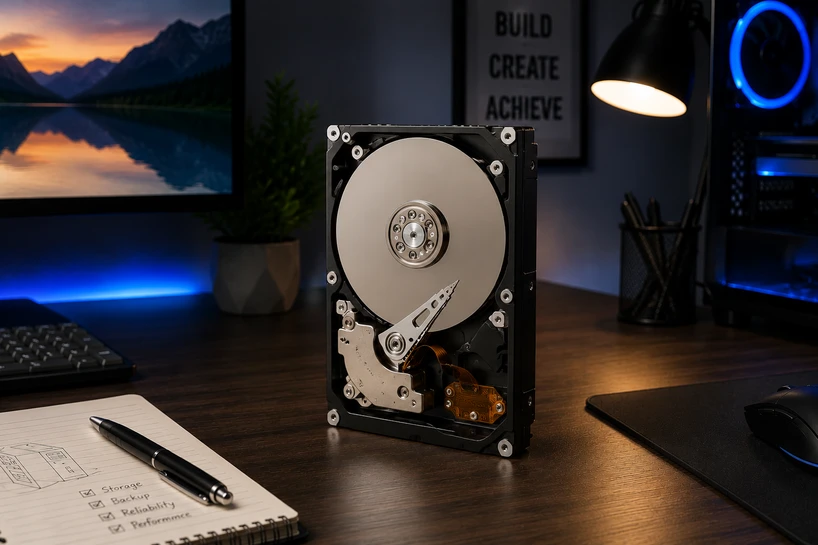
Buying a Desktop Hard Drive in 2026 comes down to three things: how much space you need, how fast the drive has to be, and how long it should last.
Get those right and you save money while keeping your files safe for years. Get them wrong and you either overpay or run out of room fast.
Storage needs keep climbing. A single modern game can take 150GB or more, and a few hours of 4K footage can fill a small drive. That is why people still buy hard drives with real capacity behind them.
Why Desktop Hard Drives Still Matter
Hard drives still matter because they give you the most storage for the least money and hold that data safely for years.
-
Cost-Effective Storage for Large Data
If you measure files in terabytes, a hard drive saves real cash. A 4TB HDD costs a fraction of a 4TB SSD. For photo libraries, video projects, and game collections, that price gap decides the whole build.
-
Reliable Performance for Everyday Computing
For normal tasks, a good hard drive keeps up fine. Loading documents, playing media, and backing up folders all run smoothly. You do not need blazing speed to open a spreadsheet or watch a movie.
-
Growing Demand for Desktop PC Storage
People make more data every year, and it has to live somewhere. Cloud plans get pricey at large tiers. Owning your own Desktop PC Storage means no monthly fee and no upload wait.
-
Long-Term Value for Personal and Business Users
A quality drive pays for itself. Home users get a safe home for memories and media. Businesses get cheap space for records and backups. One drive can serve you five years or more.
Desktop Hard Drive Recommendations for Different Workloads
The right desktop hard drive depends on what you do with your PC, so match the drive to the job.
-
Storage needs of home users
Home users do well with 1TB to 2TB. That covers photos, music, documents, and a handful of games. A standard 7200 RPM SATA drive gives smooth everyday use.
-
Requirements of gamers and streamers
Gamers need space and a bit more speed. With titles running over 100GB, a 4TB drive gives room for a big collection. Streamers who save recordings should go bigger, since footage adds up fast.
-
Content creators and large media libraries
Creators work with the heaviest files. A 6TB or 8TB drive suits editors and photographers who keep full project archives. Pair it with a faster drive for active editing.
-
Business professionals and office environments
Offices value reliability over raw speed. Reliable Desktop Hard Drives for business use hold client records and shared files that must stay safe. A 2TB to 4TB drive covers most small offices.
Desktop Hard Drives for Gaming Setups
For gaming, the best setup pairs a fast SSD with a roomy hard drive. The SSD runs your system and current favorites, while the HDD holds the rest of your library and saved content.
-
Managing massive game installations
A 500GB SSD fills up after a few titles. A large hard drive lets you keep dozens of games installed, so you skip the constant delete-and-redownload cycle.
-
Storing game recordings and streams
Captured gameplay stacks up fast. A dedicated Desktop Backup Storage drive keeps that video off your main drive so your system stays quick.
-
HDD and SSD gaming combinations
Put most-played games on the SSD for fast loads and keep everything else on the HDD. Moving a game between the two takes minutes.
-
Building a balanced gaming storage system
A 1TB SSD for active play plus a 4TB HDD for the library and captures handles a serious gaming habit without hard choices.
Business and Enterprise Storage Challenges
Businesses face storage problems home users never think about. Data must stay secure, backups must be dependable, and records often need to survive for years.
-
Secure business data management
Keeping sensitive data on drives you control gives you tighter oversight over who copies what and where the drive lives.
-
Backup and disaster recovery planning
Keep three copies of important data on two types of storage with one copy off-site. Hard drives make this affordable because you can buy several cheaply.
-
Long-term document retention
Many businesses must hold records for years. Hard drives store this cold data cheaply, so you can archive old files and free your active storage.
-
Reliable Desktop Hard Drives for business use
Pick drives built for steady daily duty. They handle constant read and write cycles better than basic consumer models.
Desktop Hard Drive vs SSD: Which Should You Buy?
Buy an SSD when speed matters most, and a hard drive when space and price matter most. Most people are best served owning both.
-
Performance expectations
An SSD boots your PC and opens programs in seconds. A hard drive is slower to respond but plays media, loads documents, and backs up files without trouble.
-
Cost-per-gigabyte comparison
This is where hard drives win big. At large sizes, an HDD costs a fraction of an SSD. When you need 4TB or more, the savings are impossible to ignore.
-
Which workloads benefit most from HDDs
Bulk storage, backups, media libraries, and archives all suit hard drives. These jobs care about capacity and cost, not split-second speed.
-
Building a hybrid storage environment
Install a small SSD for your system and active work, then add a large hard drive for everything else. You get quick daily performance and cheap bulk space.
The Real Performance Factors Most Buyers Ignore
Most people only look at capacity, but RPM, cache, and file size all shape how a drive feels day to day.
-
Why RPM matters more than capacity for some users
RPM is how fast the disk spins, and it directly affects speed. A 7200 RPM drive is quicker than a 5400 RPM one. For pure backup, the slower, cooler, quieter drive is fine.
-
Cache memory and daily responsiveness
Cache is a buffer that handles bursts of activity. A drive with 256MB cache manages busy moments better than one with 64MB. You feel this most when copying many files at once.
-
Impact of file size on drive performance
Hard drives love big files and struggle with tiny ones. Copying one large video is fast. Copying thousands of small files takes far longer, since the drive hunts for each one.
-
Understanding sustained transfer speeds
Sustained transfer speed is how fast a drive moves data over a long copy. A drive might list a high peak, but the steady rate tells the true story for real work.
Choosing the Right Capacity Without Overspending
Pick the capacity that fits your files today plus room to grow, not the biggest drive you can find.
-
Who should buy 1TB drives
A 1TB drive suits light users who browse, work on documents, and play a couple of games. It is the budget choice for a basic PC.
-
Best use cases for 2TB–4TB storage
This range fits most people. A 2TB drive handles a solid game and photo library. A 4TB drive suits gamers with big libraries, families with video, and small offices.
-
When 6TB+ drives make sense
Go 6TB or larger when you deal in serious volume. Video editors, photographers with raw archives, and businesses holding years of records all benefit.
-
Future-proofing your storage investment
Buy a size up from what you need now. Files only grow, so a little extra capacity today often costs less than a whole new drive later.
Common Desktop Hard Drive Buying Mistakes
A few mistakes trip up buyers again and again, and each one costs money or data.
-
Buying only based on capacity
A cheap, slow, high-capacity drive can feel sluggish. Look at RPM, cache, and intended use, not just the terabyte number.
-
Ignoring compatibility requirements
Check your case space and ports. A 3.5-inch drive needs a proper bay and a free SATA cable. Confirm this before you buy.
-
Choosing the wrong RPM level
A 5400 RPM drive is fine for backup but slow for active work. Picking the wrong spin speed leaves you overpaying or underwhelmed.
-
Forgetting backup and reliability needs
One drive is never a backup plan. Drives fail eventually, so plan for at least one extra drive to hold copies.
Maintaining Desktop Hard Drive Performance and Lifespan
A little care keeps a hard drive healthy for years. Heat, corruption, and neglect are the main threats.
-
Heat management strategies
Heat is a drive's biggest enemy. Give your case decent airflow and keep the drive away from other hot parts.
-
Preventing data corruption
Eject drives safely and never yank power during a write. A surge protector guards against spikes.
-
Monitoring drive health
Modern drives report their own health. Free tools read these signals and warn you before a drive gives out, so you can copy your data off in time.
-
Best maintenance practices
Keep some free space, run occasional health checks, and hold current backups. These habits cost minutes and save you from data loss.
The Evolving Future of Desktop Hard Drive Technology
Hard drives are not going away. As data grows, the need for cheap, large storage grows with it.
-
Growth of AI-generated data
AI tools now create massive amounts of content that must be stored cheaply, which plays right into high-capacity hard drives.
-
Demand for large-capacity storage
Drive makers keep pushing capacities higher for home and business use, and the hunger for space shows no sign of slowing.
-
Enterprise storage innovations
Data centers rely on hard drives, and new recording methods pack more data onto each disk. These advances reach desktop drives over time.
-
Why HDDs are expected to remain relevant
SSDs handle speed and hard drives handle scale. That split keeps the Desktop Hard Disk a core part of PC builds.
Choosing a Desktop Hard Drive is one piece of a wider storage decision that includes internal drives, SSDs, and how they fit together in your PC. For the full picture of how internal storage works, from drive types to interfaces to matching the right drive to your build, our guide: Internal Hard Drives Explained for Every User In 2026, breaks it all down. Reading it alongside this guide gives you a complete view so you can plan your whole storage setup with confidence.
Conclusion
The right Desktop Hard Drive matches your files, your speed needs, and your budget, not the biggest or cheapest on the shelf. Home users thrive with 1TB to 2TB.
Gamers and creators want 4TB and up. Businesses lean on reliable drives with a solid backup plan.
Balance is the whole game. Pair a fast SSD with a roomy hard drive and you get quick daily performance plus cheap bulk space. Even in 2026, hard drives hold their ground, storing more data for less money than anything else.
Buy the right one, care for it well, and it will keep your files safe for years.
Frequently Asked Questions
A: For performance-focused PCs, a 7200 RPM SATA drive with 256MB cache gives the best mix of speed and reliability. Pair it with an SSD that runs your system, then use the hard drive for storage and backups.
A: Check capacity, RPM, cache size, and compatibility. Match capacity to your files plus room to grow. Choose 7200 RPM for active use or 5400 RPM for quiet backups. Confirm a free 3.5-inch bay and a SATA connection.
A: Yes. SATA Desktop Hard Drives are proven and dependable. With good airflow, safe shutdowns, and regular backups, a quality drive commonly lasts five years or more.
A: Absolutely. Running both is ideal. The SSD holds your system and daily apps for fast loading, while the hard drive stores games, media, and backups. Most desktops have room for several drives.
A: Most last between three and five years under normal use, and many run well beyond that with good care. Keep the drive cool, avoid sudden power loss, and always hold backups.
A: For large backups, a hard drive is often cheaper and faster. You pay once instead of monthly and restore files instantly. Many people use both: a hard drive for the main backup and cloud for an off-site copy.
A: Standard desktop drives handle daily use well, but constant around-the-clock running suits drives built for that duty. For a typical PC that switches off at night, a regular desktop drive is fine.
A: A hard drive gives you space to keep a large game library installed. For the fastest loads, put current games on an SSD and keep the rest on the HDD along with your recordings.