Your laptop fills up faster than you planned. A few years of photos, some 4K phone video, two or three game installs, and Windows starts flashing low-disk-space warnings.
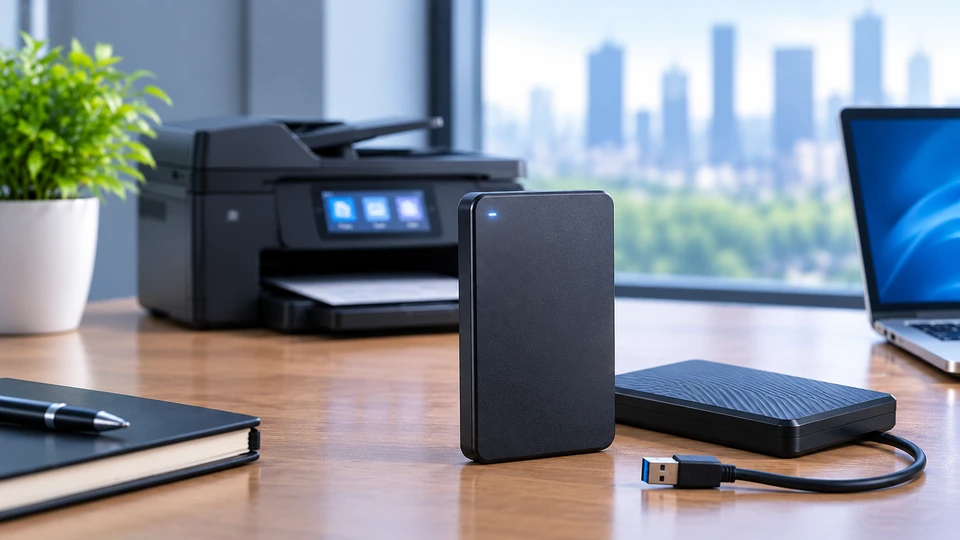
An external hard drive fixes that without opening the machine. You plug it into a USB port, a new drive shows up, and you start moving files across.
These drives still sell in big numbers in 2026, and the reason is simple. They offer a lot of space for very little money; they work with almost any PC or laptop, and they keep a second copy of your files away from your main computer.
Pushing 2TB of video up to a cloud account can take days. Copying the same 2TB to an external drive takes a couple of hours.
What Is an External Hard Drive?
An external hard drive is a storage drive that sits inside a protective case and connects to your computer by cable, almost always USB.
Your computer treats it as another drive you can read from and write to, and you can unplug it and carry it to a different machine.
Three parts do the work:
- The drive itself, either spinning magnetic platters (an HDD) or flash memory chips (an SSD)
- The enclosure, which protects the drive and holds a small bridge board that converts the drive's native SATA or NVMe signals into USB
- The connection, meaning the port, the cable, and the USB standard both ends agree on
A drive installed inside your computer plugs straight into the motherboard, boots the operating system, and stays put.
External storage sits outside the case, draws power from the USB cable or its own adapter, and moves between computers.
That bridge board explains why an external drive behaves a little differently from an internal one: it adds a small delay, and it sets the ceiling on how fast the drive can talk to your machine.
Types of External Hard Drives
Portable External Hard Drives
Portable models use 2.5-inch drives, the same size found in older laptops. They fit in a jacket pocket, weigh between 120g and 250g, and need only one USB cable for both data and power. Capacities run from 1TB to around 6TB.
No power brick makes them the obvious pick if you move between home, office and client sites. You pay for that in speed and in price per terabyte. A 2.5-inch portable HDD reads and writes at roughly 100 MB/s to 140 MB/s.
Desktop External Hard Drives
Desktop units hold 3.5-inch drives, the same kind used in tower PCs and servers. They are bigger, heavier, and most of them need a mains adapter, because a 3.5-inch drive runs on 12V and a USB port cannot supply that. A few newer USB-C desktop models now work on bus power alone.
What you get back is capacity and cost. Single-drive desktop units reach 24TB and 26TB in 2026, and the price per terabyte sits well below any portable drive.
Sequential speeds of 160 MB/s to 250 MB/s also beat portable HDDs, since the platters are larger and many models spin at 7,200 rpm. These drives belong on a desk, plugged in, not in a backpack.
External HDDs and External SSDs
An external HDD records data on spinning platters that a moving head reads. It gives you the most space for your money and suits archives, backups, and media libraries.
The moving parts are the weak point, because a knock while the platters spin can wreck the drive.
An external SSD records data on NAND flash with nothing moving inside. Everyday capacities run from 500GB to 8TB. Speed is where the two split apart:
|
Interface |
Link speed |
Real sustained speed |
|
USB 3.0 / 3.2 Gen 1 |
5 Gb/s |
400 to 450 MB/s |
|
USB 3.2 Gen 2 |
10 Gb/s |
950 to 1,050 MB/s |
|
USB 3.2 Gen 2x2 |
20 Gb/s |
1,900 to 2,100 MB/s |
|
USB4 Gen 3x2 |
40 Gb/s |
3,000 to 3,200 MB/s |
An HDD cannot use that headroom, because its platters top out near 250 MB/s. Pick an SSD when you edit video straight off the drive, run games from it, or copy big folders every day. Pick an HDD when you want bulk space and the drive mostly sits there holding files.
Key Features of External Hard Drives
Storage Capacity
Portable HDDs sell in 1TB, 2TB, 4TB, 5TB, and 6TB sizes. Desktop units start near 4TB and climb through 8TB, 12TB, 16TB, 20TB and 24TB. External SSDs cover 500GB up to 8TB.
Two things catch buyers out. The capacity on the box counts a terabyte as a trillion bytes, while Windows counts in binary, so a 2TB drive reports about 1.81TB.
Nothing is missing; the two just count differently. The second point is headroom: drives slow down, and errors become more likely as they fill. Add up what you store today, double it, and buy that size. A drive you fill in four months was the wrong purchase.
Data Transfer Speed
Transfer speed, written in megabytes per second, tells you how much data moves in one second. A 50GB video folder at 150 MB/s takes a little under six minutes. The same folder at 1,000 MB/s takes under a minute.
Advertised numbers come from a lab test with one large file. Real copies run slower, for reasons worth knowing:
- Thousands of small files move far slower than one big file of the same total size
- You cannot copy faster than the source drive can read
- An HDD writes faster on its outer tracks, so a nearly full drive feels sluggish
- SSDs use a fast write cache, and sustained writes drop once that cache fills
- A hub, a long cable, or a charge-only cable can pull the whole link down a tier
Connectivity and Interfaces
Two things decide your connection: the connector shape and the USB standard behind it. USB-A is the rectangular plug. USB-C is the small oval one that goes in either way up.
Most drives now carry a USB-C port on the enclosure and ship with a USB-C to USB-A cable in the box.
The standard sets the speed, and the link runs at the slowest part of the chain. A USB4 SSD plugged into a USB 3.0 port runs at USB 3.0 speed.
Cables count as well, since plenty of USB-C cables carry power and only 480 Mb/s of data. Check what your machine has before you pay for a faster drive.
Physical Design and Power
Portable drives weigh 120g to 250g and run on bus power from the port. Desktop drives weigh close to a kilogram and nearly all of them plug into the wall.
Aluminium shells pull heat away from the drive better than plastic, which helps an SSD hold its speed through a long copy.
If the drive travels with you, look at how it is built. Rugged SSDs come wrapped in rubber with IP ratings against dust and water, and they shrug off drops that would kill a spinning drive.
A simple portable HDD wants a padded sleeve and a bit of care.
Everyday Uses for External Hard Drives
- Holding personal and work files that do not need to live on your laptop, such as finished projects, invoices, and old email archives
- Storing photo, video, music, and document libraries, which grow faster than anything else once you shoot in 4K or RAW
- Expanding storage on a PC or laptop with soldered internal storage, where an internal upgrade is off the table
- Moving large files between two computers without waiting on an upload and then a download
- Keeping a second copy of files you cannot replace: tax records, scanned documents, contracts, family photos
- Acting as the target drive for Windows File History or macOS Time Machine, which both write scheduled copies to attached storage
Compatibility and File Systems
Device and Operating System Compatibility
Windows 10 and Windows 11 machines recognise a USB drive the moment you plug it in, and so does macOS.
Desktops and laptops behave the same way, since both talk to the drive over USB. The real questions before you buy are about ports and cables.
Check which ports you have. Many thin laptops ship with USB-C only, while older desktops put USB-A on the front.
Look at the marking beside the port too, because a blue USB-A port means 5 Gb/s and a port marked 10 or 20 gives you more. A USB-C drive still works on a USB-A machine with the right cable, at the slower speed.
File System Considerations
A file system is the method a drive uses to organise files and track free space. The one your drive carries decides which computers can write to it.
|
File system |
Works with |
Notes |
|
exFAT |
Windows and macOS |
Best pick for a drive you share between both |
|
NTFS |
Windows read and write, macOS read-only |
The standard for Windows-only drives |
|
APFS |
macOS |
Needed for Time Machine backups |
|
FAT32 |
Almost everything, TVs included |
Cannot hold a single file larger than 4GB |
Most drives arrive formatted as exFAT or NTFS and work right away. Reformat when you move a Windows drive to a Mac, set up Time Machine, or clear out a drive you bought second-hand. Formatting erases everything on the drive, so copy the files off first.
How to Choose an External Hard Drive
- Add up what you store now, open your folders and check the sizes, then double the total. That number is your starting capacity.
- Decide where the drive will live. Travelling with it points to a portable model. Sitting beside one computer all year points to a desktop unit with its own power.
- Choose HDD or SSD by what you do with the files. Archiving and backup suit an HDD. Editing, gaming, and daily large transfers suit an SSD.
- Match speed to the job. Overnight backups run fine at 150 MB/s. Editing video off the drive asks for 1,000 MB/s or more.
- Check your ports and your cable before paying for speed your machine cannot reach.
- Weigh power, portability, and build quality, along with the warranty, which runs two to five years depending on the model.
Tips for Using External Hard Drives
- Eject the drive in Windows or macOS before you pull the cable. The system may still be writing cached data, and pulling the plug mid-write corrupts files.
- Let every transfer finish. Cancelling a copy halfway can leave broken files behind.
- Build a folder structure on day one, by year or by project. Searching a drive holding 40,000 loose files is painful.
- Watch free space and act at around 85% full, since speed drops and write errors climb as a drive gets tight.
- Keep a spinning drive still while it works. Do not stack things on it, knock it, or carry it while the light blinks.
- Hold anything important on two separate drives, with one copy stored away from the first. A single external drive is storage, not a backup.
Common External Hard Drive Mistakes to Avoid
- Buying for today's files only: Storage needs grow every year, and a drive sized to your current data runs out within months.
- Ignoring ports and connectors: A fast USB-C drive paired with a laptop that has only USB-A ports means an adapter and the speed drop you paid to avoid.
- Shopping on the advertised speed alone: Box numbers come from ideal conditions. Look for sustained write figures and reviews that test real file copies.
- Pulling the cable during a transfer: This is the quickest way to lose a folder, and sometimes the whole file table with it.
- Treating one drive as the only copy: Drives fail without warning. A file that exists in one place is one accident away from gone.
- Buying a desktop unit when you need portability: A 3.5-inch drive plus a power brick makes a poor travel companion, and a bumped desktop drive is a dead desktop drive.
External drives are one part of a wider storage picture that also takes in internal SSDs, NAS boxes, server drives, and cloud copies. For the full view of how those pieces fit together, read our Ultimate Storage Device Guide 2026 for Businesses & Personal Use which compares drive types, capacities and workloads side by side and shows where an external drive earns its spot in a home setup or a company workflow.
Conclusion
An external hard drive is the cheapest and simplest way to add space to a computer you already own. Work out how much data you hold, double it, then pick a portable or desktop design based on whether the drive travels.
Choose an HDD for bulk archives and an SSD for files you work on directly. Check your ports, match the cable, eject the drive properly, and keep anything you cannot lose in more than one place. Get those few things right, and the drive quietly does its job for years.
Frequently Asked Questions
A: It adds storage space to a computer without opening it. People use one to hold photo and video libraries, archive finished work, back up documents, free space on a full laptop, and carry large files between machines.
A: For bulk storage and backups, an HDD gives far more space for the money. For files you open and edit straight off the drive, an SSD earns its higher price because it runs several times faster and survives knocks.
A: Yes. Any laptop with a USB port works. A portable drive runs on power from the port itself, so the cable is all you need. A desktop drive works too, as long as a mains socket is within reach of its adapter.
A: Not in normal use, since the drive only works while you read or write to it. The exception is running software or game files from a slow external HDD, because the drive then becomes the slow part of the system.
A: Portable 2.5-inch drives and external SSDs do not, because USB supplies enough power. Most 3.5-inch desktop drives need their own adapter for 12V, though a few recent USB-C models manage on bus power.
A: Three to five years of regular use is a fair planning figure for a spinning drive, and plenty run longer. Warranty lengths of two to five years show what makers expect. SSDs wear out through write cycles, which everyday use rarely exhausts. Plan for failure either way and hold a second copy.
A: An HDD writes to spinning magnetic platters, while an SSD writes to flash memory chips. The HDD holds more for less money and reaches far higher capacities. The SSD runs much faster, draws less power, makes no noise, and handles being dropped.