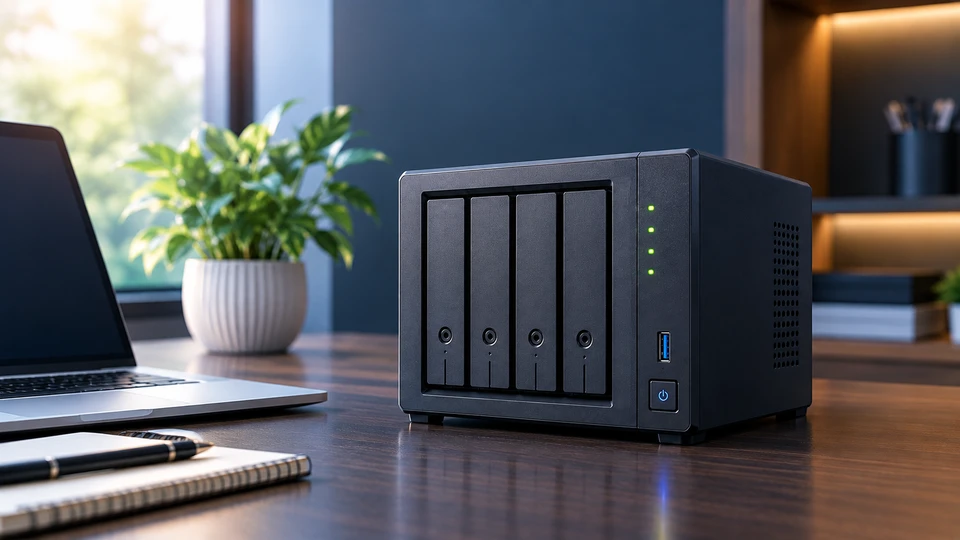
Network Attached Storage (NAS) is a storage device on your network that gives every approved computer, phone, and server one shared place to save and open files. You plug it into your router or switch, give it an IP address, and it stays on and ready.
The reason NAS storage keeps showing up in homes and offices is simple. We create far more data than we did five years ago. IDC's forecast puts global data creation on track to grow from 173 zettabytes in 2024 to more than 527 zettabytes by 2029, and that pressure lands on small teams too, not just data centres.
Scattered storage breaks first. Files sit on one desktop, backups sit on a USB drive in a drawer, and nobody knows which copy is current.
A network-attached storage device fixes that, which is why a photographer with 40TB of footage and a 60-person accounting firm buy the same class of hardware.
Understanding Network Attached Storage (NAS)
What Is a NAS Device?
A NAS server is a small, purpose-built computer whose only job is serving files. It has a processor, memory, an operating system stored on internal flash, and a set of bays that hold hard drives or SSDs. You manage it through a web dashboard in your browser.
The difference from an external hard drive comes down to who can reach it. An external drive talks to one computer through one USB cable. A NAS storage devices talks to everything on the network at once, handles multiple users, applies permissions, and keeps running when your laptop is closed.
How Does Network Attached Storage Work?
Your computer asks the NAS for a file. The NAS checks whether your user account has rights to that folder, reads the file off its drives, and sends it back over the network. All of this happens through file sharing protocols: SMB for Windows machines, NFS for Linux and Unix systems, and options like FTP, WebDAV, and S3 for apps and scripts.
Because the exchange happens at the file level rather than block level, your operating system treats the NAS like any other folder. Map it once, and it shows up in File Explorer or Finder as a drive you can drag things into.
Key Components of a NAS Device
Processor: Home units run dual-core ARM chips. Business models use quad-core or six-core x86 processors that handle encryption, virtual machines, and heavy multi-user traffic without stalling.
Memory: Entry models ship with 2GB to 8GB. Business and enterprise Network Attached Storage units start around 16GB and take far more, and many support ECC memory that catches and corrects bit errors before they touch your data.
Drive bays: Two bays on a home NAS, four to eight on small business models, twelve to twenty-four or more on rackmount units. Hot-swap bays let you pull a failed drive while the system stays online.
Network ports: Gigabit Ethernet is the floor. Newer models add 2.5GbE, and business units offer 10GbE ports or expansion card slots for them.
Cache slots: Many current models include M.2 NVMe slots so you can add SSD cache without giving up a drive bay.
How Does a NAS Connect to a Network?
Run an Ethernet cable from the NAS to your router or switch and assign it a fixed IP address so the path never changes. From there, users map the shared folders as network drives and work normally.
Speed depends on the link. A gigabit connection tops out near 110 to 125 MB/s in real transfers. A 2.5GbE link roughly doubles that. A 10GbE link can push past 1,000 MB/s, though you only see it if your switch and the client machines run 10GbE too. Link aggregation and SMB Multichannel spread traffic across two or more ports when many people pull files at the same time.
For access outside the office, you connect over an encrypted VPN or an HTTPS portal with two-factor authentication switched on.
Why NAS Storage Matters for Modern Businesses
One place for files: Shared project folders, client records, and archives live on the NAS instead of on individual machines. New staff get access on day one by joining a group, and leavers lose access the moment their account is disabled.
Controlled collaboration: You set permissions per user, per group, and per folder. Most business NAS platforms tie into Active Directory or LDAP, so you manage rights from the directory you already run. Access logs show who opened, changed, or deleted what.
Storage that grows with the team: Start with four drives, fill the empty bays later, then attach an expansion unit when the chassis runs out. Capacity grows in steps you can budget for.
Backup and recovery that runs itself: Endpoint agents pull copies from laptops on a schedule. Snapshots capture the state of a folder every few hours and restore a clean version in seconds after an accidental delete or a ransomware hit. Replication copies everything to a second NAS at another site or to cloud storage, which covers the offsite copy in the 3-2-1 backup rule.
Types of Network Attached Storage
Personal NAS
A home NAS runs one or two bays and handles photo libraries, phone backups, documents, and media. It streams video to TVs and tablets on the same network, works as a Time Machine target for Macs, and gives the household a private alternative to paying monthly for cloud space.
Small Business NAS
Four to eight bays, faster processors, and proper user management. This is the tier that runs shared department folders, hosts internal apps, records footage from IP cameras, and backs up every workstation in the office overnight.
Enterprise NAS
Twelve bays and up, ECC memory, redundant power supplies, and 10GbE or 25GbE networking. Enterprise NAS units serve virtualization datastores over iSCSI or NFS, hold databases and analytics sets, and support failover pairs so a controller fault doesn't stop work.
Rackmount NAS
Same enterprise internals in a 1U, 2U, or 4U chassis with rails, front-serviceable drive bays, and high-airflow fans. Rackmount NAS belongs in a server room or data centre where noise doesn't matter, and rack density does.
Key Features of Modern NAS Devices
Centralized file storage and sharing: One namespace, one set of permissions, one place to look. Windows, macOS, Linux, iOS, and Android clients all reach the same folders.
RAID protection: RAID 1 mirrors two drives. RAID 5 survives one drive failure and gives up one drive's worth of capacity to parity. RAID 6 survives two failures, which matters on large drives because rebuilds take many hours. RAID 10 pairs mirroring with striping for speed. RAID keeps you running through a hardware fault. It does not protect against deletion, corruption, fire, or theft, so it never replaces a backup.
Remote access: Mobile apps and desktop sync clients reach files from anywhere over encrypted connections, with two-factor authentication and per-user share links for outside collaborators.
Automatic backup and recovery: Scheduled jobs, file versioning, snapshot schedules, and immutable snapshots that cannot be altered or deleted for a set retention period.
Choosing the Right NAS Device
Work out real capacity, not raw capacity: Add up what you store today, then plan for growth over three to five years. Remember RAID overhead: four 8TB drives in RAID 5 give you 24TB of usable space, not 32TB. Aim to stay under about 80% full, since performance drops as a volume fills.
Match the RAID level to the bay count: RAID 1 suits two-bay units. RAID 5 fits four to six bays. RAID 6 makes sense once you pass eight bays or use very large drives.
Check the whole network path: A 10GbE NAS on a gigabit switch performs like a gigabit NAS. Speed only arrives when the NAS, the switch, the cabling, and the client machines all agree.
Buy room to expand: Empty bays are cheaper than a second unit. Check the model's maximum drive size, maximum volume size, and whether it supports an expansion chassis.
Common Mistakes When Buying a NAS
Too few bays: A two-bay unit bought for a growing team gets replaced within two years. Buying four or six bays and filling them gradually costs less over time.
Skipping the RAID decision: Some people set up drives as separate volumes with no redundancy at all, then lose a project when one drive dies.
Underestimating growth: Video, backups, and camera footage grow faster than anyone predicts. Double your first estimate.
Wrong network speed: Ten people editing shared media over gigabit will queue behind each other. Check the load before you pick the ports.
Desktop drives instead of NAS-rated drives: Drives built for continuous operation and vibration in multi-bay chassis last longer here. A UPS is worth adding too, since power cuts during writes cause the ugliest corruption.
The Future of Network Attached Storage
AI features are moving into NAS operating systems: automatic tagging and search across photos and documents, anomaly detection that flags ransomware-style file activity, and tiering engines that move cold data to cheaper drives without anyone managing it.
Flash keeps gaining ground. NVMe caching is now standard on mid-range models, and all-flash NAS units are showing up wherever latency matters more than cost per terabyte. AI workloads are pushing that shift hard, since spinning disks stall GPU pipelines that expect microsecond response times.
Hybrid setups are becoming the norm. The NAS holds working data on site for speed, then syncs archives and backup copies to cloud object storage. And faster networking keeps trickling down: 2.5GbE on consumer boxes, 10GbE as the business default, 25GbE where throughput rules.
Conclusion
A NAS solves a problem almost every household and business now has: too much data spread across too many devices with no reliable copy. It gives you one location, real permissions, backups that run on schedule, and access from wherever you happen to be working.
Pick by bay count, RAID level, and network speed rather than headline capacity, and buy with three to five years of growth in mind. Get those three right and the same unit will serve you long after the drives inside it have been swapped for bigger ones.
For a wider look at how NAS compares with external drives, SSDs, SAN, and cloud storage, and how to plan a full storage setup across your devices, read our Ultimate Storage Devices Guide 2026 for Businesses & Personal Use It covers each storage type side by side so you can see where a NAS fits into the bigger picture before you commit to hardware.
Frequently Asked Questions
A: Network Attached Storage is a dedicated storage device connected to your network that lets multiple users and devices store, access, and share files from one central location. It has its own processor, memory, operating system, and drive bays, and you manage it through a browser dashboard.
A: An external hard drive connects to one computer through a USB cable and works only when that computer is on. A NAS connects to your network, serves many users and devices at once, supports user accounts and permissions, protects data with RAID, runs scheduled backups, and stays available whether your laptop is open or not.
A: Yes. A two-bay home NAS covers photo and phone backups, document storage, and media streaming to TVs and tablets. It also gives you a private alternative to monthly cloud subscriptions, with your files staying inside your own house.
A: Add up your current data, then plan for three to five years of growth and factor in RAID overhead. Four 8TB drives in RAID 5 deliver 24TB of usable space. Try to keep the volume under 80% full, because performance falls as it fills up.
A: Yes, for dataset storage, project archives, and model checkpoints. Smaller training and inference jobs run fine against a NAS with NVMe caching and 10GbE networking. Large GPU clusters need higher-throughput architectures, since standard file protocols become the bottleneck at that scale.
A: Security depends on setup. Current NAS platforms support AES-256 encryption for volumes and shared folders, two-factor authentication, HTTPS and VPN access, per-user permissions, firewall rules, IP blocking after failed logins, and immutable snapshots that ransomware cannot alter. Keeping firmware current and never exposing admin ports directly to the internet matters as much as the features themselves.